· Security · 3 min read
Threat Modeling with AI: Creating Data Flow Diagrams (DFD)
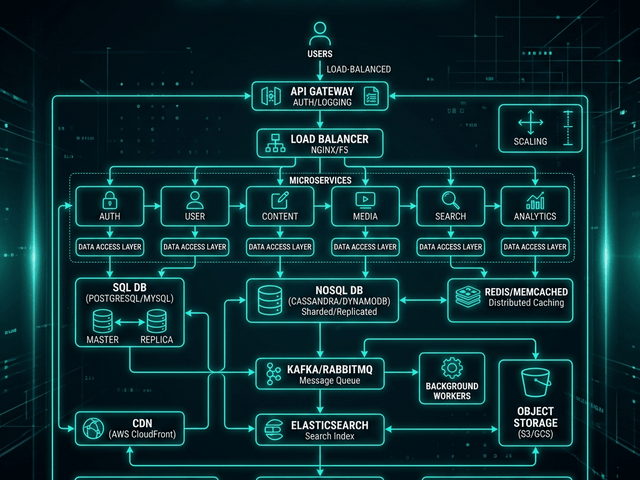
This guide explains how to use AI threat modeling tools to generate Data Flow Diagrams (DFD) instantly, allowing you to bake security into the design phase.

Security often feels like a blocker. The developers want to ship features. The security team wants to stop everything and do a review.
The friction comes from a lack of visibility. The security team can’t protect what they can’t see.
They ask “Where do we store credit card numbers?” The developers say “In the database.” “Which database? Is it encrypted? Does the logging service see it?”
To answer these questions you need a specific type of map. You need a Data Flow Diagram (DFD).
This guide explains how to use ai threat modeling tools to generate these diagrams instantly allowing you to bake security into the design phase rather than pasting it on at the end.
Why Security Needs Visualization
You cannot audit code line-by-line for architectural flaws. You need a high-level view.
Identifying “Trust Boundaries”
The core concept in threat modeling is the Trust Boundary.
This is the line where data moves from a trusted zone (your internal network) to an untrusted zone (the internet).
You need to visualize this line. Every arrow that crosses it is a potential attack vector. It is where you need authentication input validation and encryption.
Tracking PII (Personally Identifiable Information) flow
GDPR and CCPA compliance requires you to know exactly where user data lives.
A DFD shows the journey of an email address. It enters through the Web Form. It passes through the API. It lands in the Database. It gets copied to the Data Warehouse.
Visualizing this path reveals leaks. “Wait why is the Marketing Analytics tool reading from the production User Database?”
Creating a DFD (Data Flow Diagram) with AI
Drawing DFDs manually is tedious. You have specific symbols for “Process” (Circle), “Data Store” (Parallel Lines), and “External Entity” (Rectangle).
Defining Actors, Processes, and Data Stores
With AI Diagram Maker you describe the flow in text.
“User (External) sends Credit Card to Payment API (Process). Payment API saves token to Order DB (Store) and sends receipt to Email Service (Process).” Prompt: “Map the flow of credit card data from User to Payment Gateway”
The AI parses this. It selects the correct DFD symbols. It draws the arrows representing the data flow. It allows you to generate a professional security diagram in seconds during a design review meeting.
Analyzing the Diagram for Vulnerabilities
Once you have the diagram you can play “Attacker.”
STRIDE threat model context
You apply the STRIDE framework (Spoofing, Tampering, Repudiation, Information Disclosure, Denial of Service, Elevation of Privilege).
You look at the diagram. You point to the arrow between the API and the Database. “Can someone Tamper with this data?” (Is it signed?) “Can someone sniffing the network see this?” (Is it TLS?)
The visual prompts the right questions.
Spotting unencrypted channels visually
You can ask the AI to color-code the diagram. “Color all unencrypted connections red.”
If you see a red line crossing a Trust Boundary you have found a critical vulnerability. You fix it before you write the code.
Documentation for Compliance
Security isn’t just about not getting hacked. It is about proving you are secure.
Keeping DFDs up to date for auditors
When the SOC2 auditor comes they want to see current architecture diagrams. If you hand them a dusty drawing from 2019 you fail.
By using a text-to-diagram workflow you can regenerate your DFDs every sprint. You ensure your compliance evidence matches your production reality. This turns a painful audit into a routine check.