· Use Cases & Guides · 6 min read
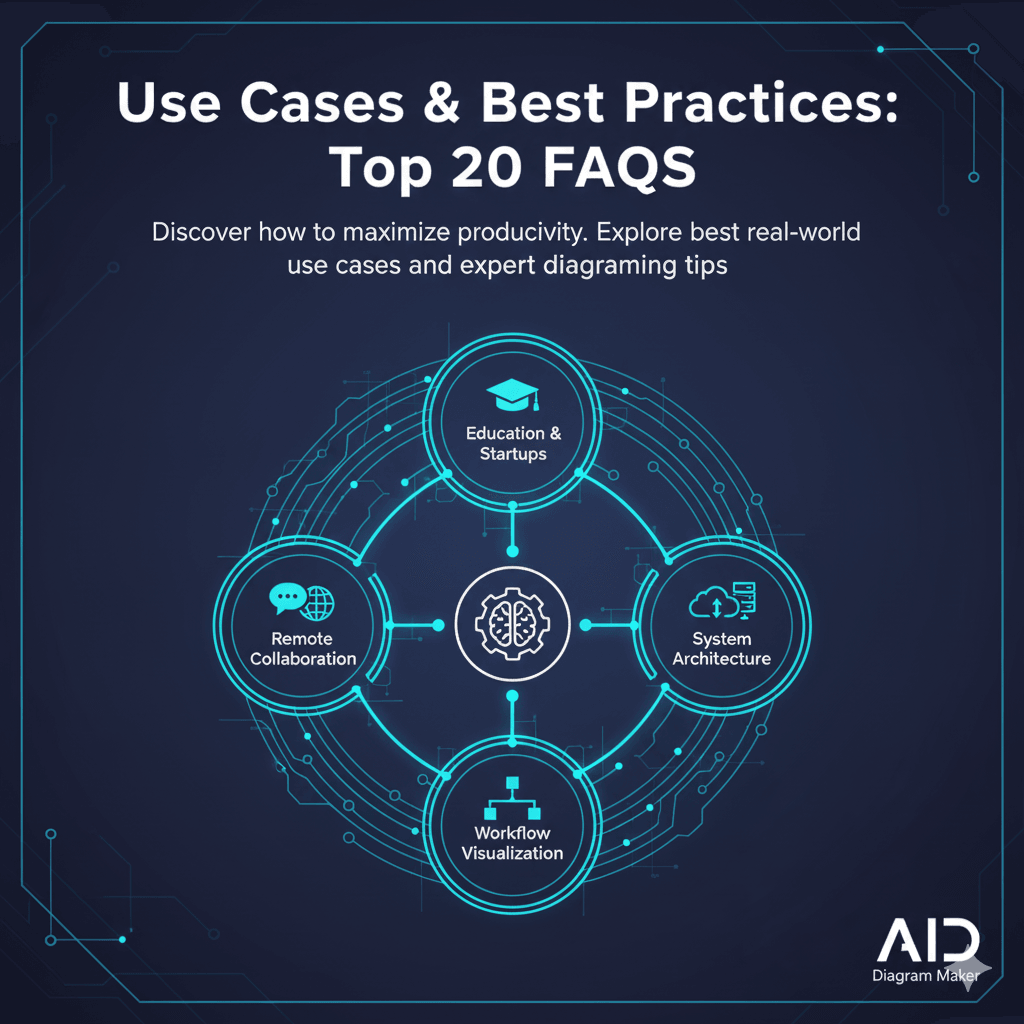
AIDiagramMaker Use Cases & Best Practices: Top 20 FAQs
Discover how to maximize productivity with AIDiagramMaker. From education and startups to system architecture and remote collaboration, explore the best real-world use cases and expert diagramming tips.
1. How can teachers use AIDiagramMaker in education?
Teachers are using it in some really creative ways. The most common use is to quickly create high quality visual aids for lectures and handouts, which saves them a ton of time. But some are also using it for live, in class demonstrations, building a diagram on screen as they explain a concept. I’ve even seen innovative assignments where students are asked to write a clear description of a process, and their grade is based on how well the AI can diagram their text.
2. How do startups use it for brainstorming ideas?
Speed is everything in a startup. AIDiagramMaker is perfect for that fast paced environment because it lets founders and early team members get ideas out of their heads and into a visual format in seconds. They use it to quickly sketch out new user flows, map out potential business processes, or create a high level architecture for their MVP without getting bogged down in a slow, manual tool.
3. Can developers use it for system architecture diagrams?
Absolutely. This is probably one of the most powerful use cases. Developers can either describe their system in plain English to create a high level blueprint, or, even better, they can connect their GitHub repository and have the AI generate a diagram directly from the code. This creates “living documentation” that is always accurate.
4. What’s the best way to visualize workflows?
The best way is to start by writing down the steps of the workflow in a simple, sequential list, almost like a recipe. Then, feed that list to the AI with a prompt like, “Create a flowchart from these steps.” Be sure to include any decision points using words like “if” and “then” (e.g., “If the user is valid, then proceed to the dashboard”). This will help the AI create the correct branches.
5. How can project managers use AIDiagramMaker?
Project managers love it for process mapping. They can take raw notes from a discovery meeting and instantly turn them into a polished workflow diagram that they can share with stakeholders for sign off. It’s a great way to ensure everyone is aligned on a process before any development work begins.
6. Can I create UML diagrams with it?
Yes. The AI has been trained on the conventions of the Unified Modeling Language. You can create common UML diagrams like Class Diagrams, Sequence Diagrams, and Activity Diagrams just by describing the components and their relationships in your prompt.
7. Is AIDiagramMaker good for business process mapping?
It’s excellent for it. The ability to quickly turn text based notes or process documents into visual flowcharts or even more formal BPMN diagrams is a huge time saver for business analysts and process consultants.
8. What are the top features to save time while diagramming?
Number one is the text-to-diagram generation itself. After that, the code-to-diagram feature for developers is a massive time saver. And finally, the ability to use conversational follow up prompts to edit your diagrams is much faster than manual editing.
9. Can I use it for customer journey mapping?
Yes. A flowchart is a great way to represent a customer journey. You can map out all the touchpoints a customer has with your product or service, from initial awareness all the way through to purchase and support.
10. How do I collaborate with my team remotely?
Currently, AIDiagramMaker is designed for individual productivity. To share your work with your team, you can export your diagrams as high-quality PNG or SVG files and drop them into your existing communication tools like Slack, Confluence, or Jira. We are actively working on native team collaboration features for a future update.
11. Can it replace traditional whiteboard tools?
In many ways, yes. I think it’s a huge upgrade. While whiteboarding is great for freeform sketching, an AI diagramming tool is much better for creating structured, professional looking diagrams in real time during a meeting. It turns the chaotic energy of a whiteboard session into a clean, shareable asset instantly.
12. What are the best prompts to generate accurate diagrams?
The best prompts are clear, specific, and sequential. Start with a verb that describes the diagram type (e.g., “Create a flowchart…” or “Show a sequence diagram…”). Then, list the components and the actions that connect them in a logical order. The more specific you are, the better the AI can understand your intent.
13. How do I edit an existing AI-generated diagram?
The easiest way is with a follow up prompt. Just type a new instruction on the existing diagram, like “Add a database connected to the user service” or “Change the color of the payment API to red.” The AI will understand the context and modify the diagram for you.
14. Can I turn notes into diagrams automatically?
Yes. This is one of my favorite features. You can literally copy and paste a block of unstructured, messy meeting notes and ask the AI to “Create a flowchart from these notes.” It’s surprisingly good at finding the underlying process and visualizing it for you.
15. What’s the best way to share diagrams with clients?
You have a couple of great options. You can export a high quality PNG or PDF and email it to them as a static file. Or, for a more interactive experience, you can share a public, view only link to the diagram itself. This allows them to see the diagram in their browser without needing an account.
16. Can I export diagrams into PowerPoint or Google Slides?
The best way to do this is to export your diagram as a high resolution PNG file with a transparent background. You can then just drag and drop that image file directly onto your PowerPoint or Google Slide, and it will look great.
17. Is it suitable for enterprise teams?
We currently offer plans tailored for individual developers and professionals. We do not have a dedicated “Enterprise” tier with features like SSO or custom branding at this time, but our premium plans provide robust capabilities suitable for professional use.
18. How can I make diagrams visually appealing?
The good news is, the AI does most of the work for you by handling the layout and styling. To take it a step further, you can try out different themes that we offer. Choosing a theme that matches the tone of your presentation can make a big difference.
19. How do I ensure my diagrams stay consistent in style?
The best way is to use the built in themes. By having your whole team agree to use the same theme, you can ensure that all the diagrams you produce have a consistent, professional look and feel, with the same colors, fonts, and shapes.