· Tutorial · 9 min read
ASCII to Diagram: Turn AI Text Diagrams Into Shareable Visuals
Learn how to turn ASCII diagrams from Claude Code, Cursor, or VS Code into cleaner, shareable visuals with AI Diagram Maker using MCP.
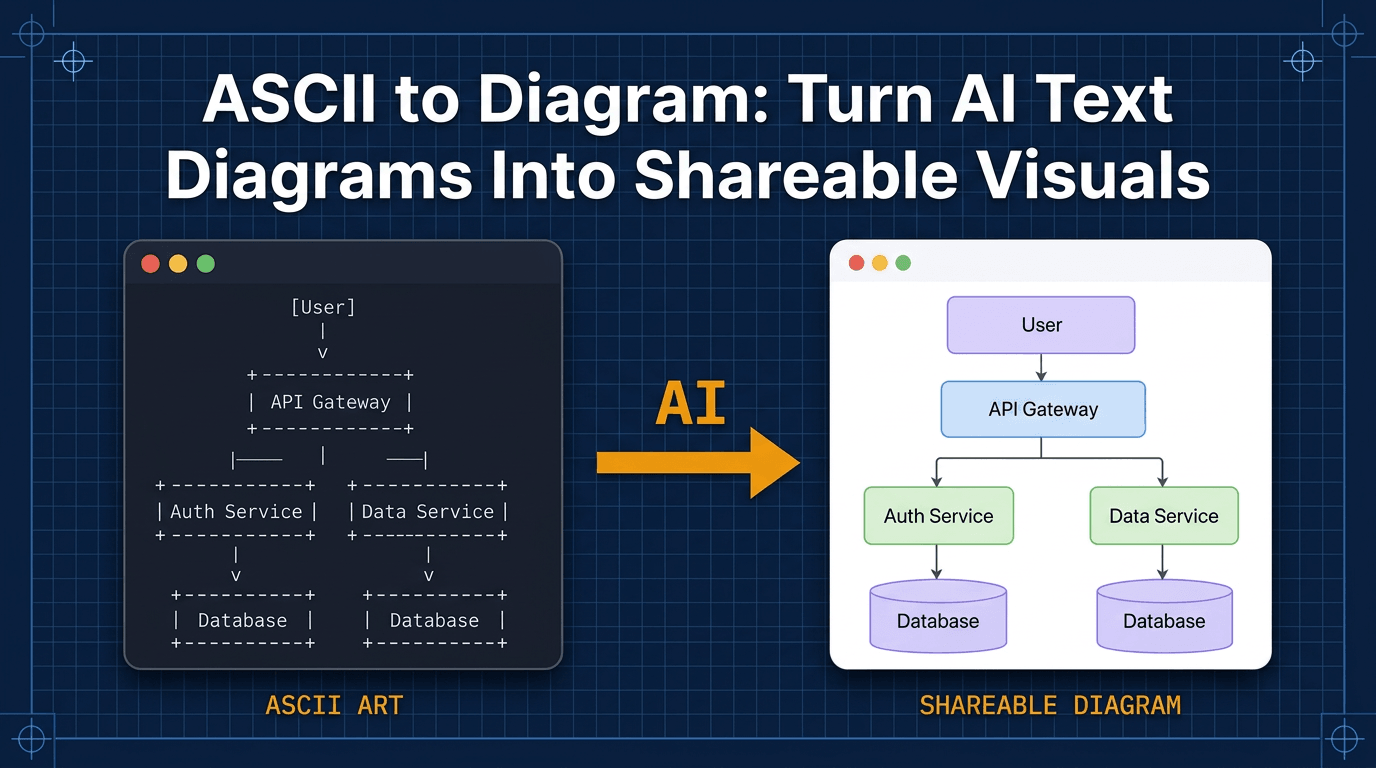
ASCII to diagram becomes useful the moment an AI coding assistant gives you something technically correct but socially awkward to share: a block of monospace boxes and arrows that makes sense in the terminal, but not in a team doc.
I run into this a lot when I ask an assistant to explain a codebase. The explanation is often good. The ASCII text diagram is often good too. But if I want to drop that diagram into onboarding notes, a design review, or a Slack thread, I usually want something cleaner and easier to scan.
That is the workflow I want to show here. I will use Claude Code for the example, but the same pattern works in Cursor, VS Code, or any editor where you have MCP wired up. Let the assistant produce the first rough ASCII text diagram, then turn it into a cleaner visual with AI Diagram Maker.
Why does ASCII to diagram matter?
ASCII diagrams keep showing up because they are genuinely useful while you are still thinking. A 2024 CHI paper on how programmers diagram code makes the same point: developers use ASCII drawings as real working artifacts because they live comfortably inside code, terminals, markdown files, and chat.
That is why AI assistants produce them so often. ASCII is lightweight, easy to generate, and easy to edit in place. If you ask an assistant to explain the flow of a small application, an ASCII text diagram is often the fastest way for it to show structure without switching formats or requiring a renderer.
The limitation shows up later. An ASCII diagram is great for your own understanding, but it is not always what you want to present to a team. Alignment can get messy, labels wrap badly, and the whole thing looks more like scratch work than documentation. That gap between “good enough for me right now” and “good enough to share” is exactly where ASCII to diagram helps.
How does the ASCII to diagram workflow work?
For the walkthrough, I am using the public erajasekar/Simple-Banking-System repository. It is a small Python project with a very readable domain: create an account, authenticate into an existing account, then withdraw, deposit, check balance, or exit. That makes it perfect for a first repo explanation prompt.
I would start in Claude Code with a prompt like this:
Explain end to end flow of main application.
Summarize the major steps and include a simple ASCII diagram.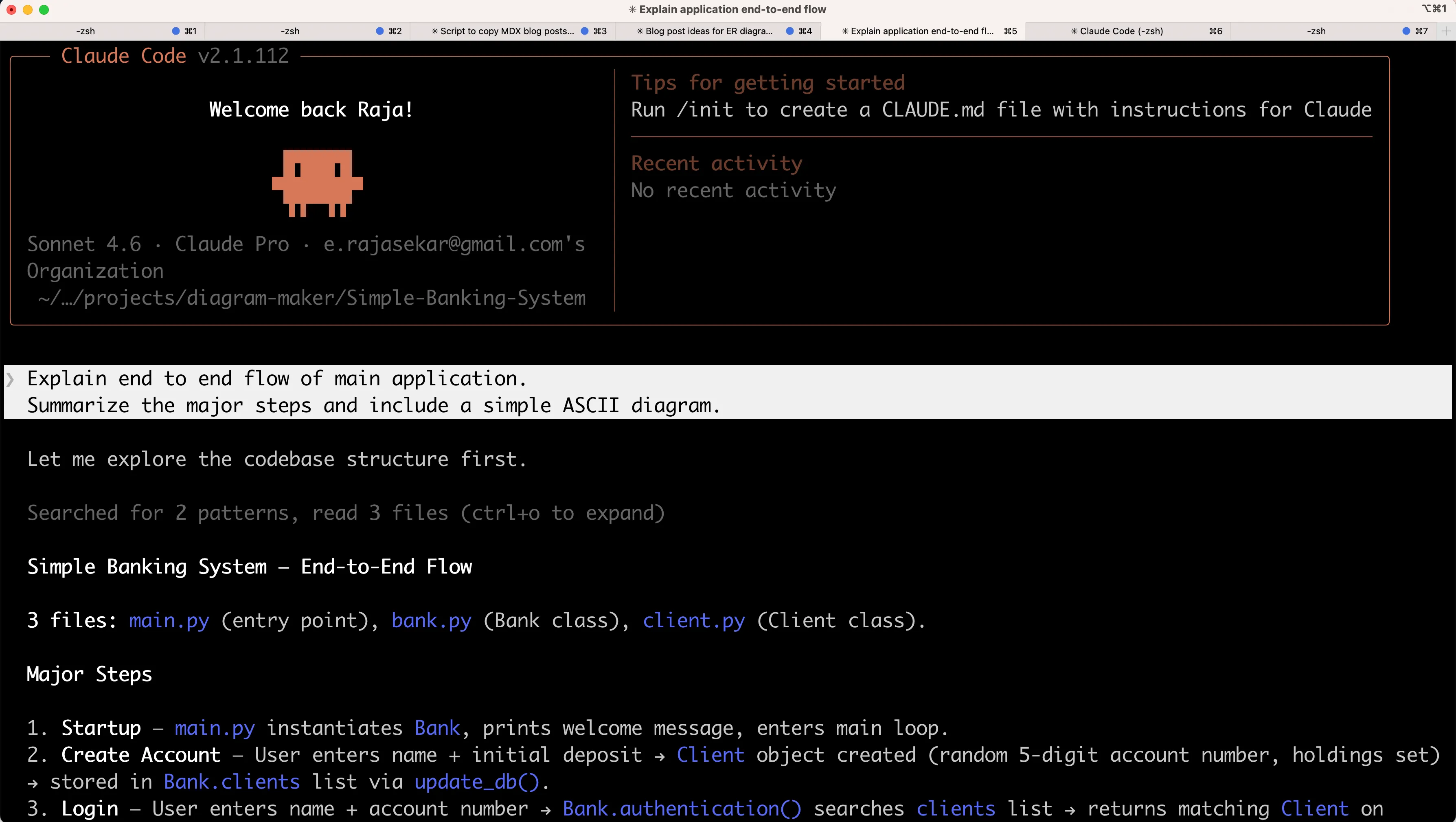
If the assistant reads the repo and the README carefully, the output usually lands on a shape like this:
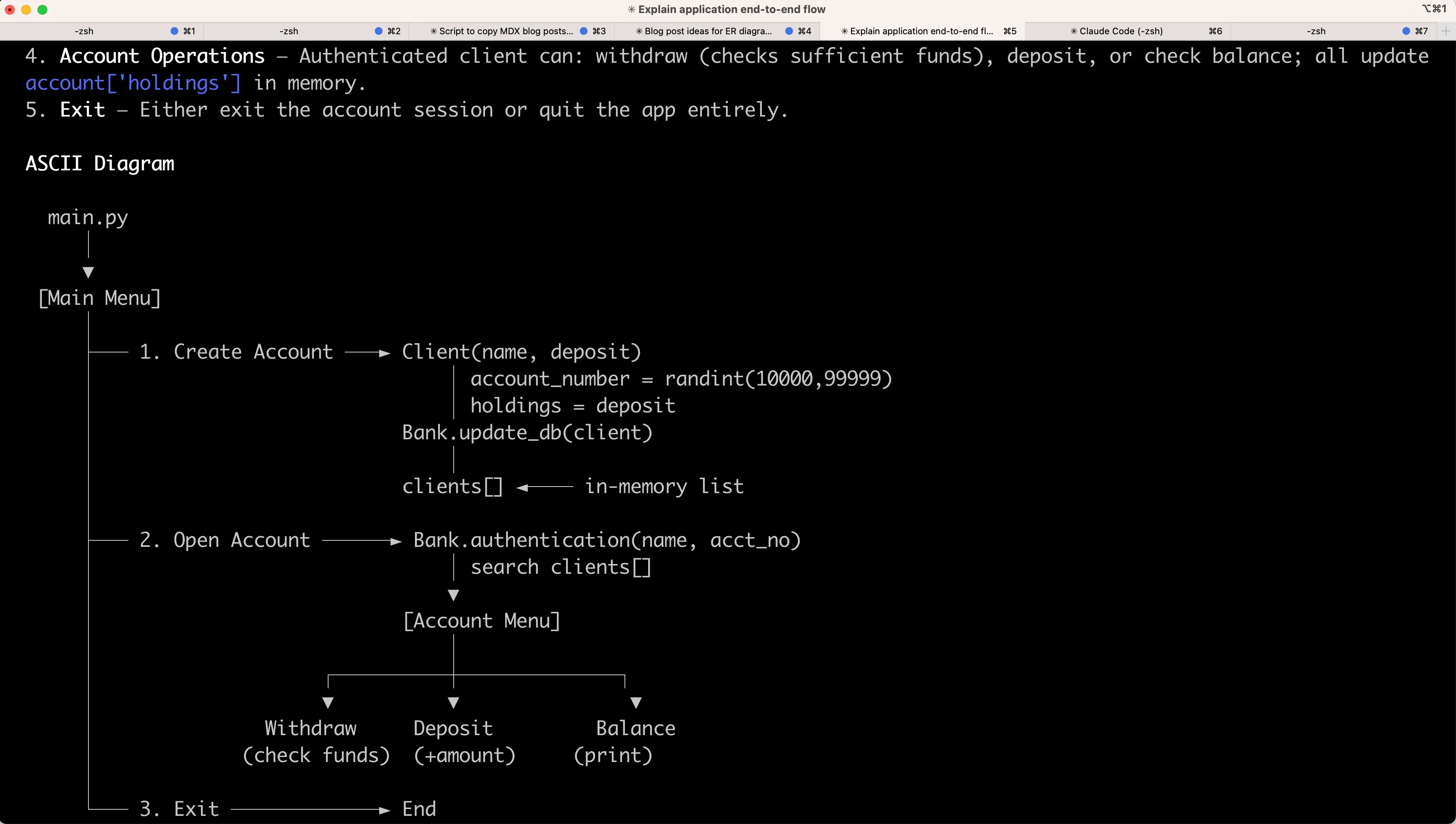
This is a good intermediate format. It is fast to generate, easy to inspect, and easy to correct with follow-up prompts like “simplify that” or “focus only on the user path.” I like staying in ASCII for that step because I am still shaping the idea, not publishing it yet.
How do you convert ASCII to diagram?
Once the structure looks right, I stop treating the ASCII block as the final deliverable and start treating it as input. That is the key shift.
The follow-up prompt can be very direct:
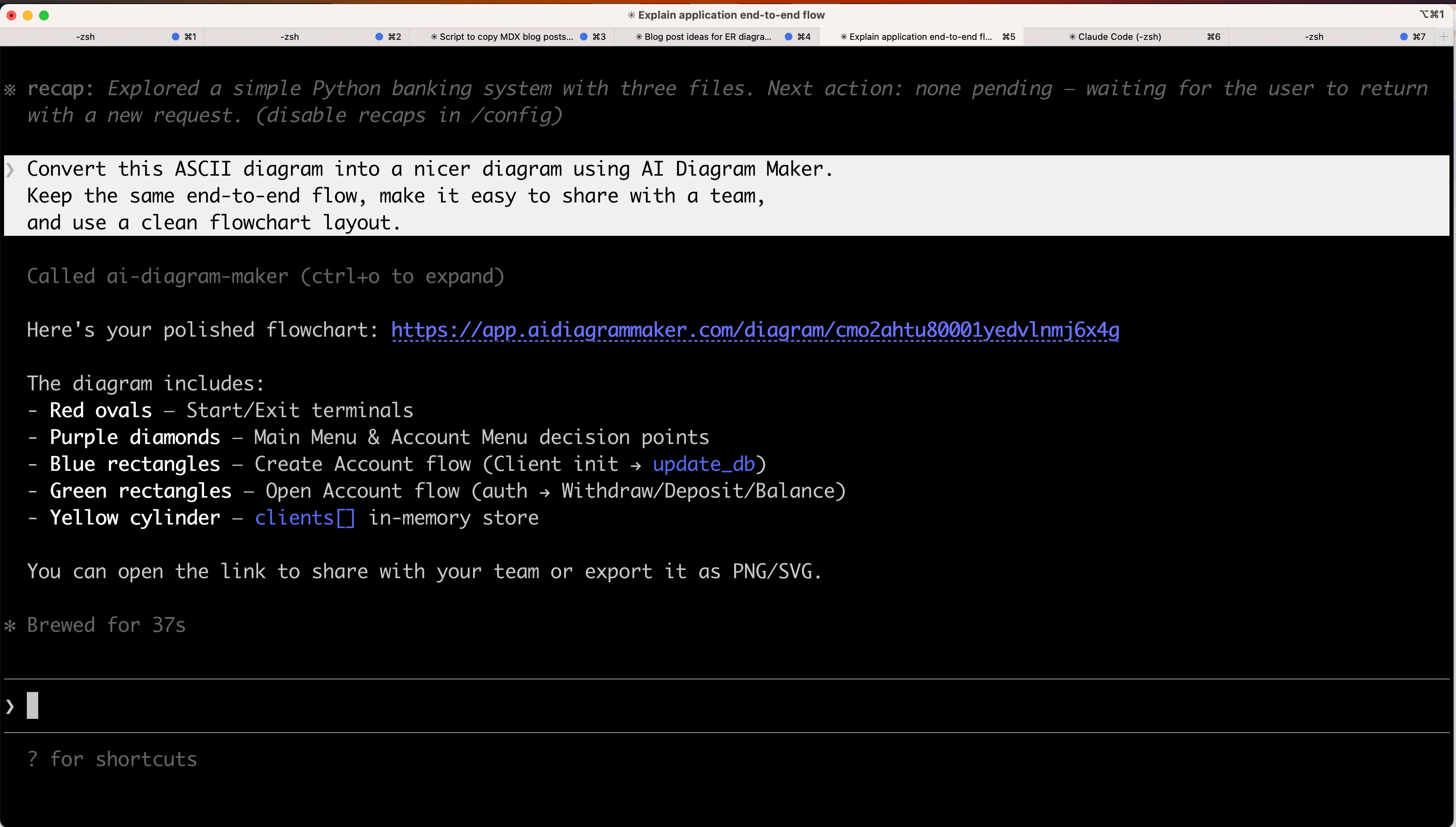
Convert this ASCII diagram into a nicer diagram using AI Diagram Maker.
Keep the same end-to-end flow, make it easy to share with a team,
and use a clean flowchart layout.
You can use the same pattern in Cursor or VS Code too. The editor does not matter much here. What matters is that the assistant can call AI Diagram Maker through MCP instead of leaving you with raw text that you have to redraw by hand.
In practice, this feels much better than starting over in a visual editor. The ASCII diagram already contains the structure, so AI Diagram Maker can render it in a format that is easier to present. ASCII stays a fast scratchpad, and you only switch once the logic is right.
If MCP is connected, Claude Code will typically return a link you can open in AI Diagram Maker. That handoff is the whole point: you stay in the same conversation while exploring the repo, then move into a proper diagram workspace when you are ready to refine the result.
What does the final version give you?
The final diagram is not just prettier. In this banking example, it already looks structured and presentation-ready: the main menu sits clearly at the top, the create-account and open-account branches are grouped cleanly, and the account actions are easy to follow without staring at a block of monospace text.
Open the generated result in AI Diagram Maker, then make the one small edit that improves readability: increase the font size.
That is one of the nice parts of this workflow: the ASCII version gives the assistant the structure, and the rendered version often comes out close to shareable on the first pass.
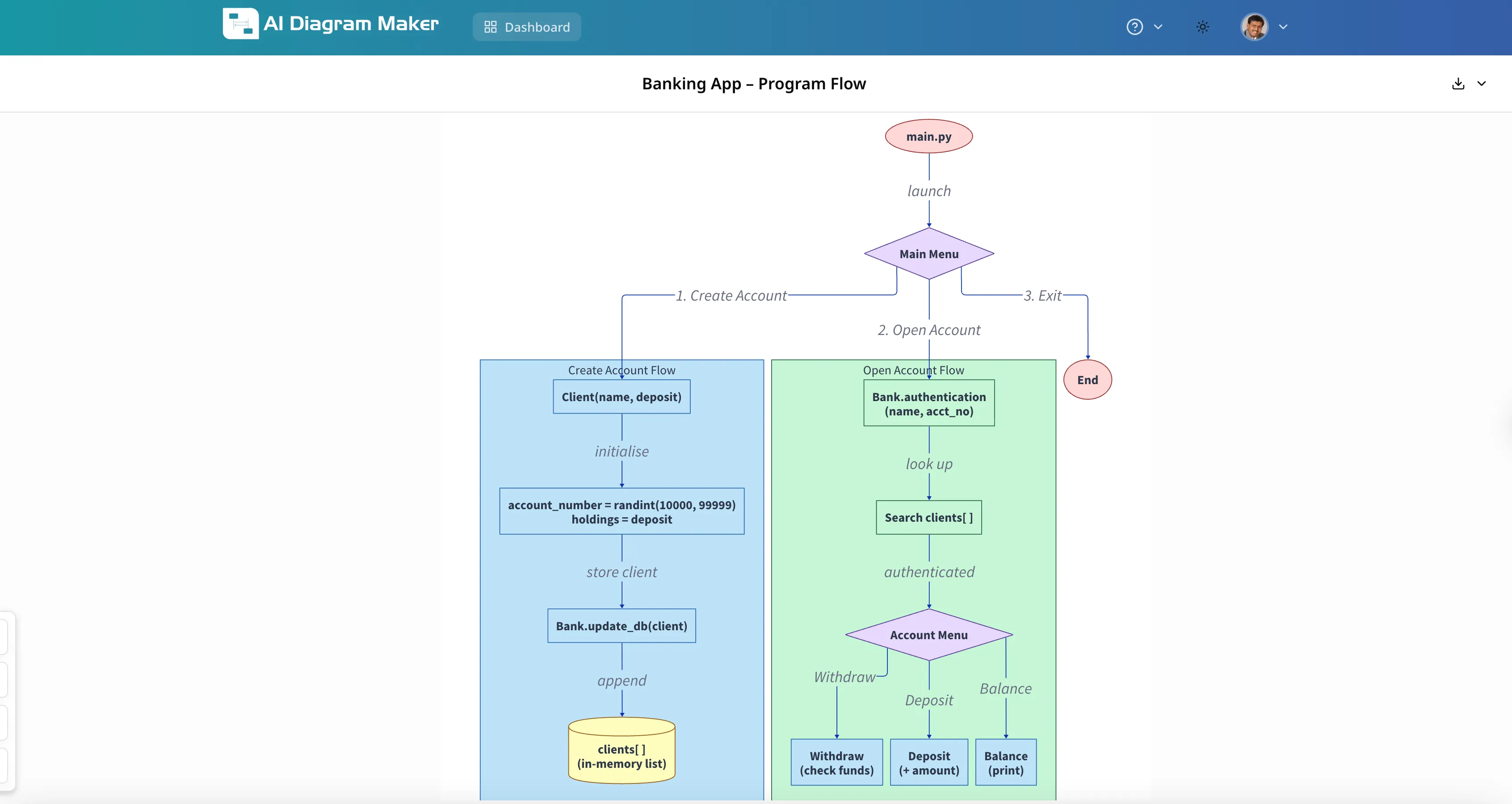
This is also the point where the diagram becomes team-friendly. Instead of pasting a terminal block into a wiki page and hoping everyone mentally reconstructs it, you can share a clean visual that is easier to discuss in onboarding, planning, or review meetings.
How do you share the final diagram?
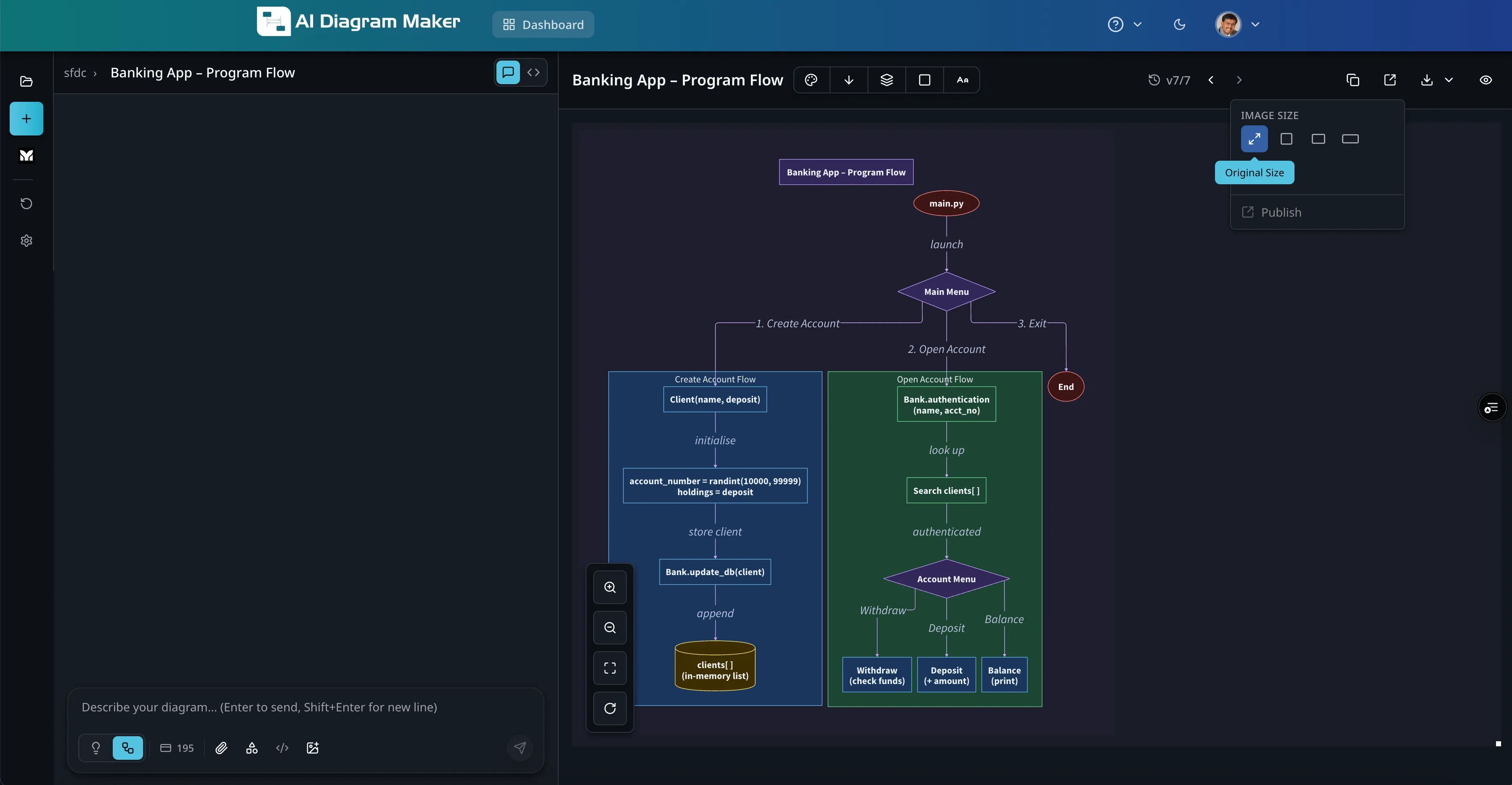
Once the diagram looks right, I would switch it to dark mode before sharing. In this example, the darker background makes the banking flow feel more finished, and the colored sections stand out more clearly, which helps both in screenshots and in the hosted shared view.
From there, the share flow is short: open the share or export menu, choose how you want to publish it, and generate the final output. That is all you need for a clean team-facing artifact.
I like this part of the workflow because it separates two different jobs:
- the coding assistant helps me understand the codebase quickly
AI Diagram Makerhelps me package that understanding in a way other people can consume quickly
That is a small distinction, but it matters. A lot of AI-generated outputs are good for the person who asked the question and awkward for everyone else. Changing to dark mode and sharing the finished diagram turns it into something that looks intentional, not temporary.
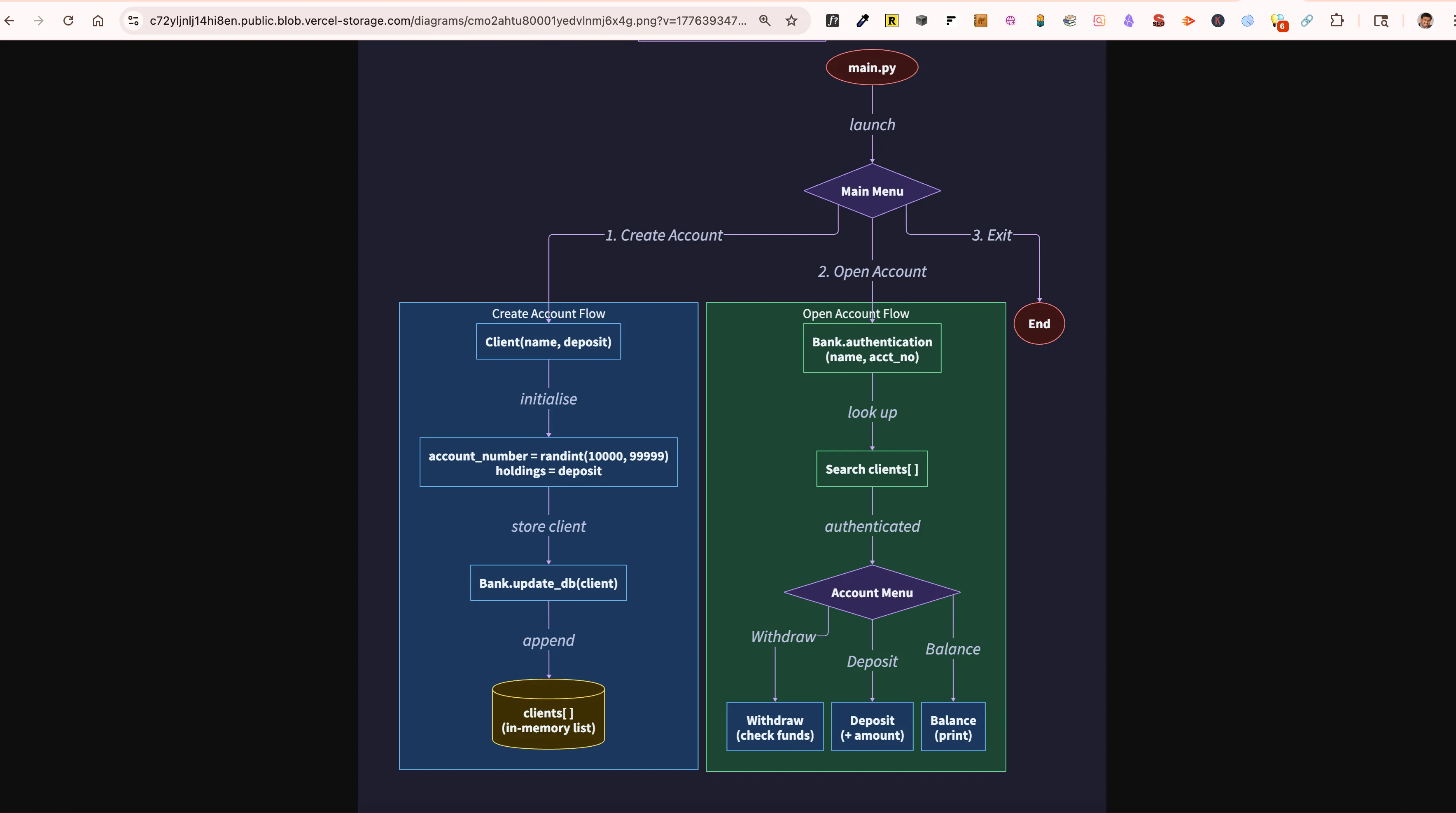
If your real goal is team documentation rather than personal exploration, this is the step that makes the workflow worth it.
Do you need MCP for ASCII to diagram?
If you want the smooth version of this workflow, yes. MCP is what lets the editor call AI Diagram Maker directly instead of stopping at text output.
For a concise setup, the flow is:
- create an API key in
AI Diagram Maker - add the
AI Diagram MakerMCP server to your editor - verify the tool is connected
- ask your assistant to generate or convert diagrams in chat
For Claude Code, the quick command looks like this:
claude mcp add ai-diagram-maker -t stdio -e ADM_API_KEY=<api_key> -- npx -y ai-diagram-maker-mcp@latestIf you want the full steps, screenshots, and API key walkthrough, use the AI Diagram Maker MCP setup guide. If you want the broader editor-specific version of this workflow, I would also read Diagram Generator MCP for Cursor, Claude Code, and VS Code. And if you want a Claude-desktop walkthrough from scratch, How to Create Diagrams Directly in Claude Code is the best companion post.
The important thing is that this is not limited to Claude Code. The same pattern works anywhere the assistant can read context and call the tool, including Cursor and VS Code.
When should you keep ASCII first?
I would not skip ASCII entirely. It is still the best format for rough thinking.
Use ASCII first when:
- you are exploring a repo and still figuring out the important paths
- you want the assistant to iterate quickly before you care about presentation
- you are working in the terminal and do not want to jump into a browser yet
Convert it to a cleaner diagram when:
- you need to share it with your team
- you want to add it to docs or onboarding material
- readability matters more than editability as plain text
That balance feels right to me. ASCII is the working draft. The final diagram is the artifact.
FAQ
What is the fastest way to go from ASCII to diagram?
The fastest route is to keep the ASCII block, then ask your assistant to convert that exact output with AI Diagram Maker. That preserves the structure you already validated instead of making the assistant restate the whole workflow from scratch.
Can I do this outside Claude Code?
Yes. Claude Code is just the example in this post. The same approach works in Cursor, VS Code, or any editor where the assistant can access AI Diagram Maker through MCP.
Do I need MCP for the smooth workflow?
You can always copy an ASCII diagram into another tool manually, but MCP is what makes the workflow feel smooth. It lets the assistant move directly from explanation to diagram generation without breaking the conversation.
Why not just stay with Mermaid or ASCII?
Sometimes you should. If the diagram is tiny or meant to stay close to the repo as text, Mermaid or raw ASCII is perfectly fine. I switch to AI Diagram Maker when I want something cleaner, more visual, and easier to share outside the editor.
Wrap up
The useful part of ASCII to diagram is that you can keep your fast AI-assisted thinking workflow, then turn the result into something your team can actually use. Let the assistant sketch the first draft in ASCII, then ask AI Diagram Maker to turn it into a proper visual once the structure is right.
If this fits how you document systems, try AI Diagram Maker and see how it feels on a real repo walkthrough.