· Tutorial · 4 min read
How to Create Diagrams Directly in ChatGPT
Learn how to create diagrams directly in ChatGPT with AI Diagram Maker MCP, including setup in OpenAI chat, first prompts, and quick edits.
You can have a genuinely useful architecture discussion in ChatGPT, get the idea clear in your head, and then immediately hit the annoying part: now you need to turn it into a diagram.
That is usually where momentum drops. You leave the conversation, open another tool, start dragging boxes around, and spend the next twenty minutes formatting instead of finishing the thought.
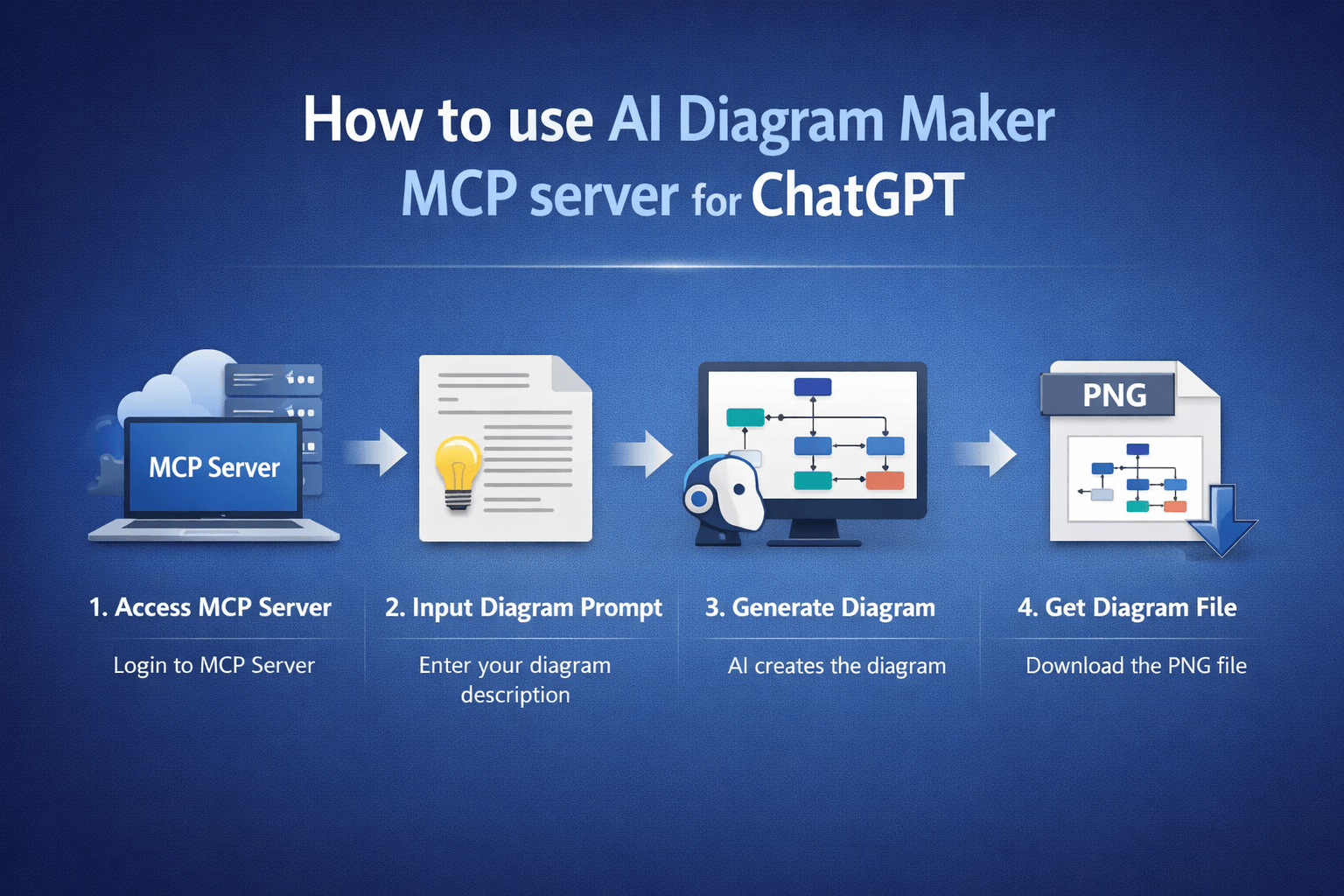
This tutorial shows a cleaner workflow. You will connect AI Diagram Maker to ChatGPT with MCP, generate your first diagram from a plain-English prompt, and then make a few quick visual edits only if you want them.
MCP in plain English
MCP stands for Model Context Protocol. The simplest way to think about it is USB for AI tools.
USB gives your computer a standard way to connect to external devices. MCP gives ChatGPT a standard way to connect to external tools. In this setup, the external tool is AI Diagram Maker.
That is the whole reason this workflow works. Instead of explaining an idea in chat and then rebuilding it somewhere else, ChatGPT can call the diagram tool directly.
What this integration gives you
The benefit is straightforward: you can create diagrams without leaving ChatGPT.
For this tutorial, the setup happens in the OpenAI platform chat because that flow supports the MCP connector configuration we need right now. Once it is connected, the workflow is simple:
- get an API key from
AI Diagram Maker - connect the MCP server in the OpenAI platform chat
- prompt
ChatGPTto create a diagram - open the result in
AI Diagram Makerif you want to refine it
If you want the full written setup guide alongside this walkthrough, start with AI Diagram Maker MCP setup.
Step 1: Get your API key
Open AI Diagram Maker, go to Settings, then Integrations -> API Keys, and create a new key. Give it a label like ChatGPT so you can recognize it later.
Copy the key as soon as it is created. You will use it in the next step, and it will not be shown again after that.
If you want a slower, screenshot-by-screenshot version of this part, the API key guide is useful to keep open in another tab.
Step 2: Open the ChatGPT setup screen
Go to OpenAI platform chat and sign in.
This is where you will add the MCP server and use it in chat.
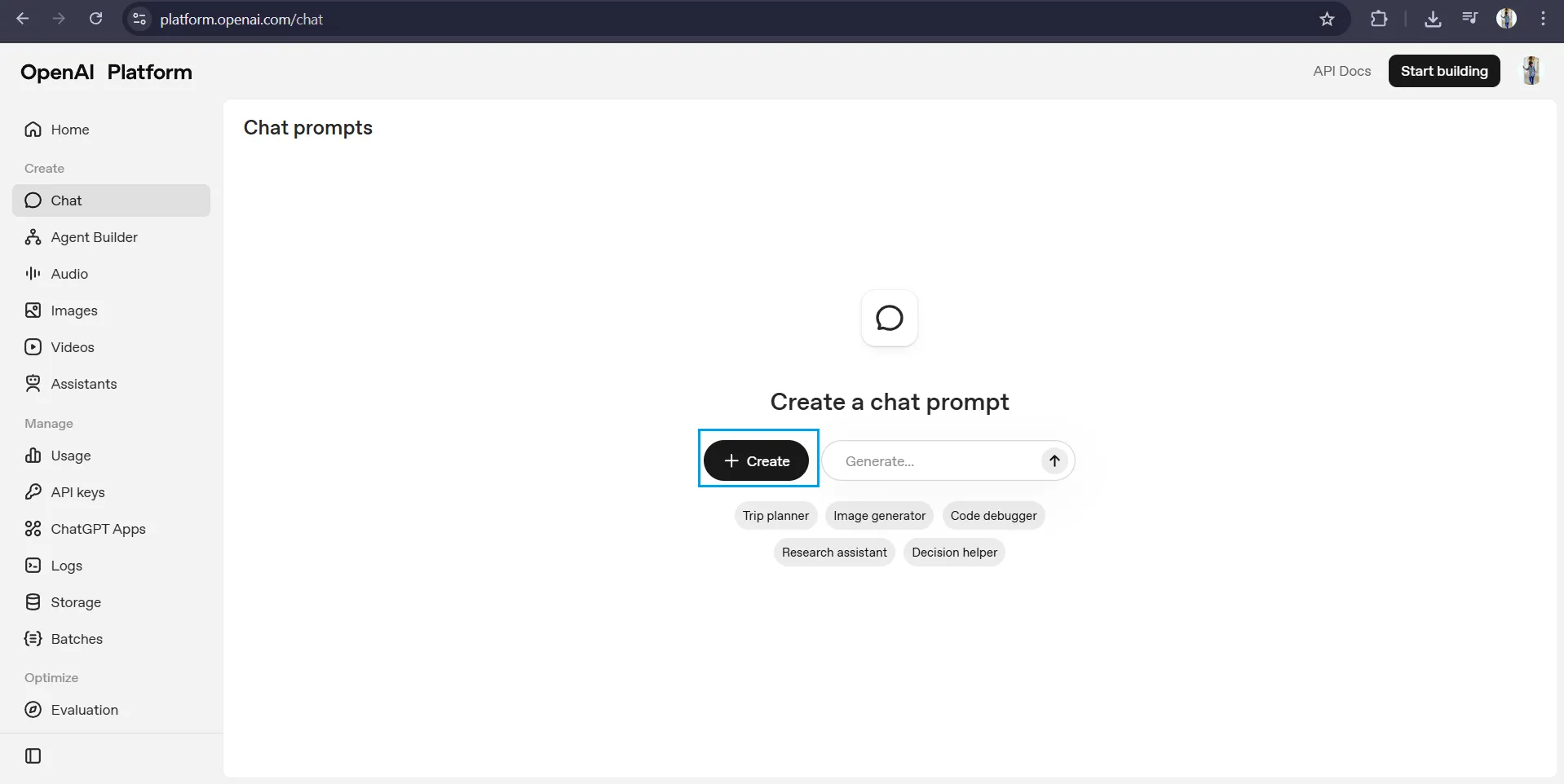
Step 3: Add the MCP server
Click Create, then Add tool, then choose MCP server.
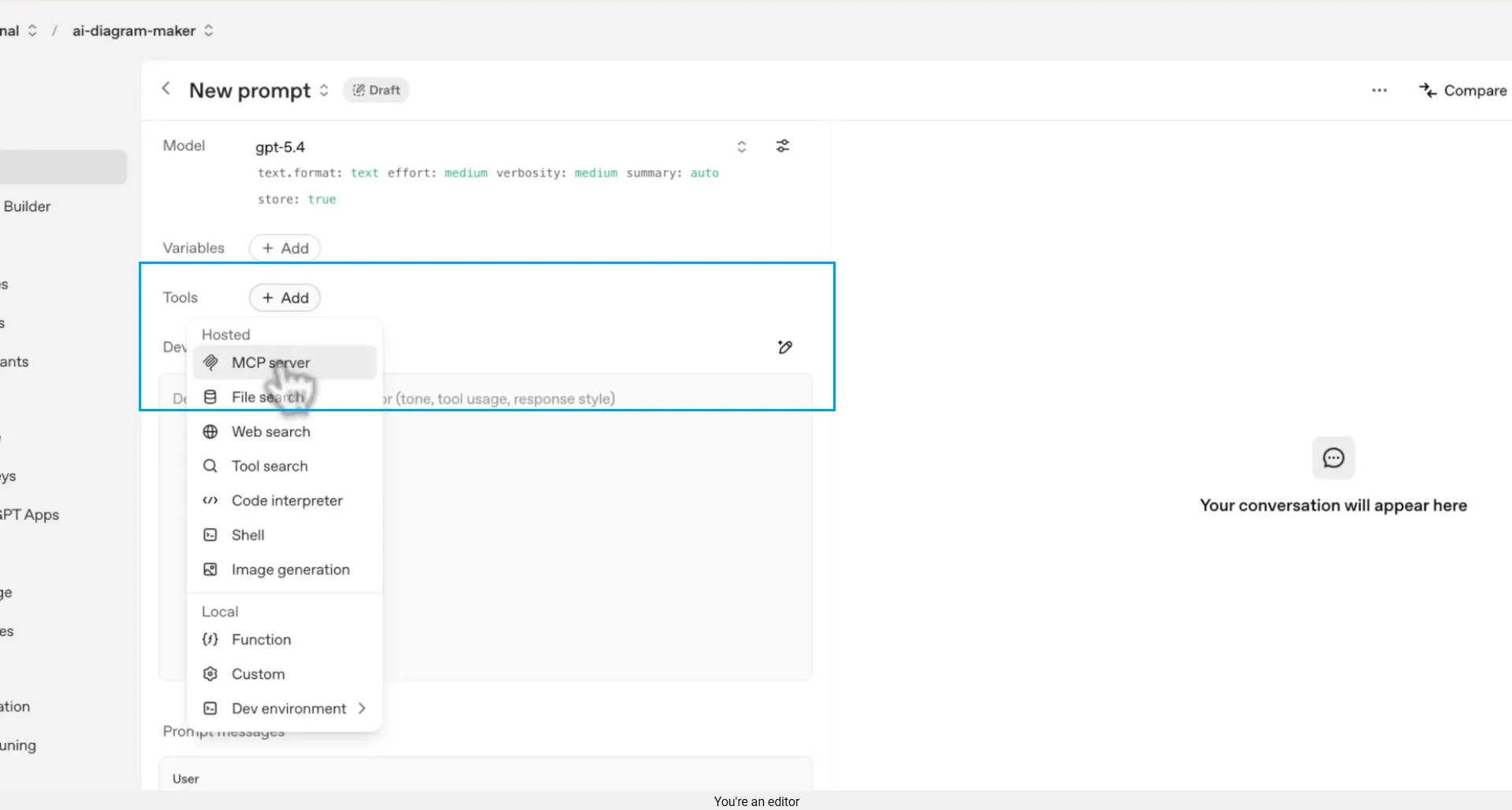
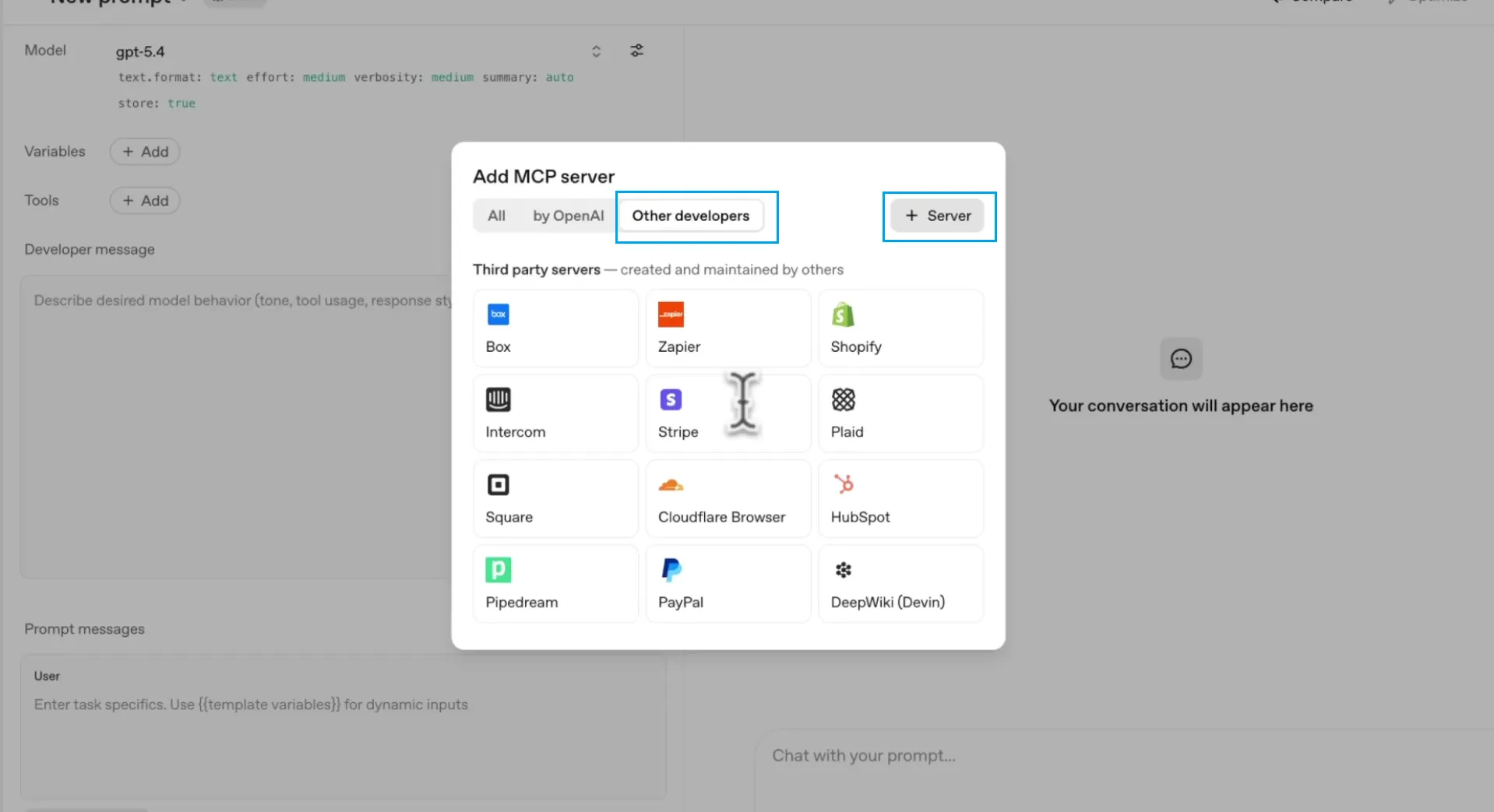
On the next screen, choose Other developers, then Server.
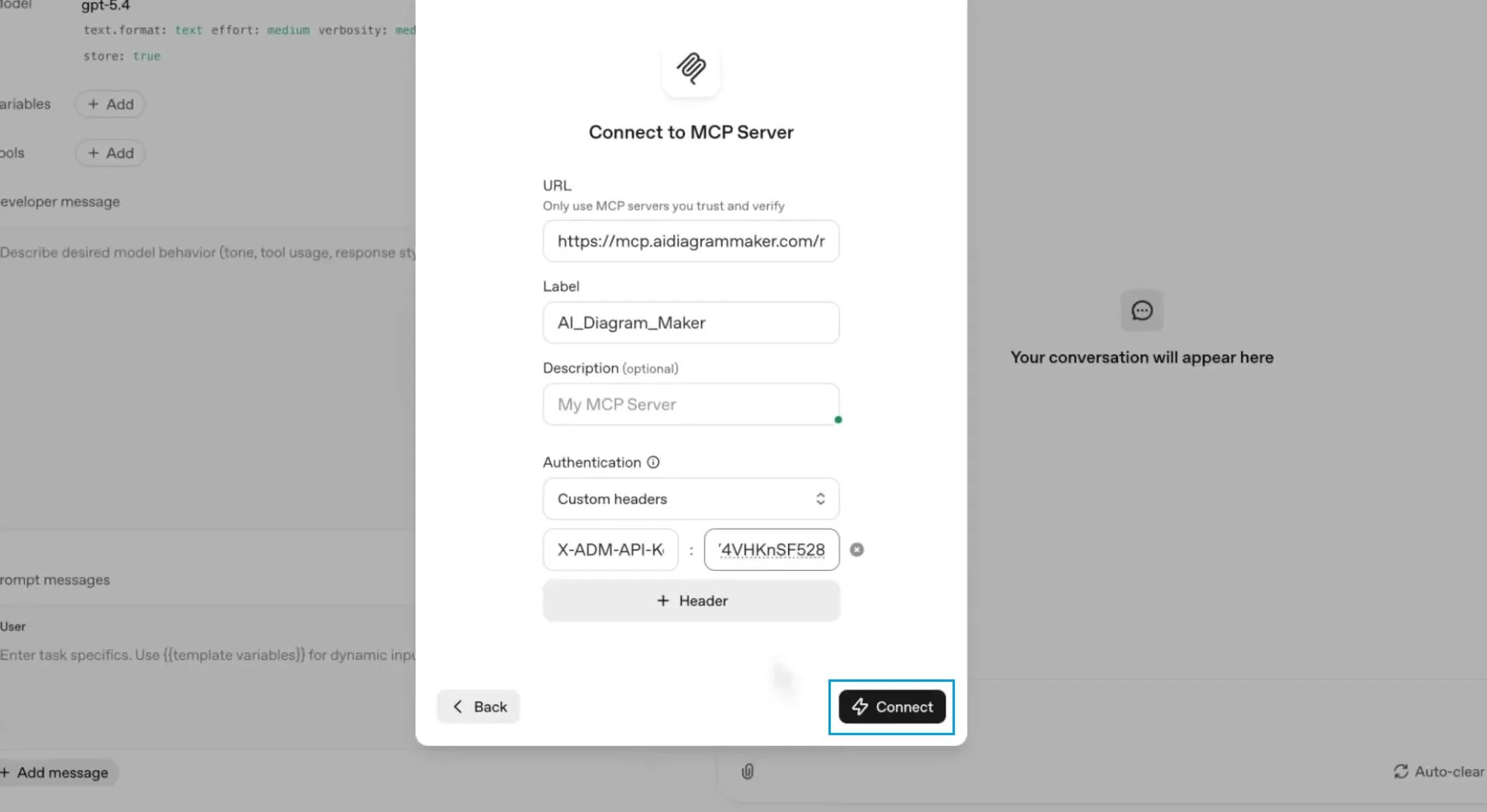
Now enter the server details:
- URL:
https://mcp.aidiagrammaker.com/mcp - Label:
ai-diagram-makeror any name you prefer - Description: optional
- Authentication:
Custom headers - Header key:
X-ADM-API-Key - Header value: paste your API key
Then click Connect.
Step 4: Enable the tools and guide ChatGPT
Once the connection succeeds, you will see the available AI Diagram Maker tools. Add them to the chat.
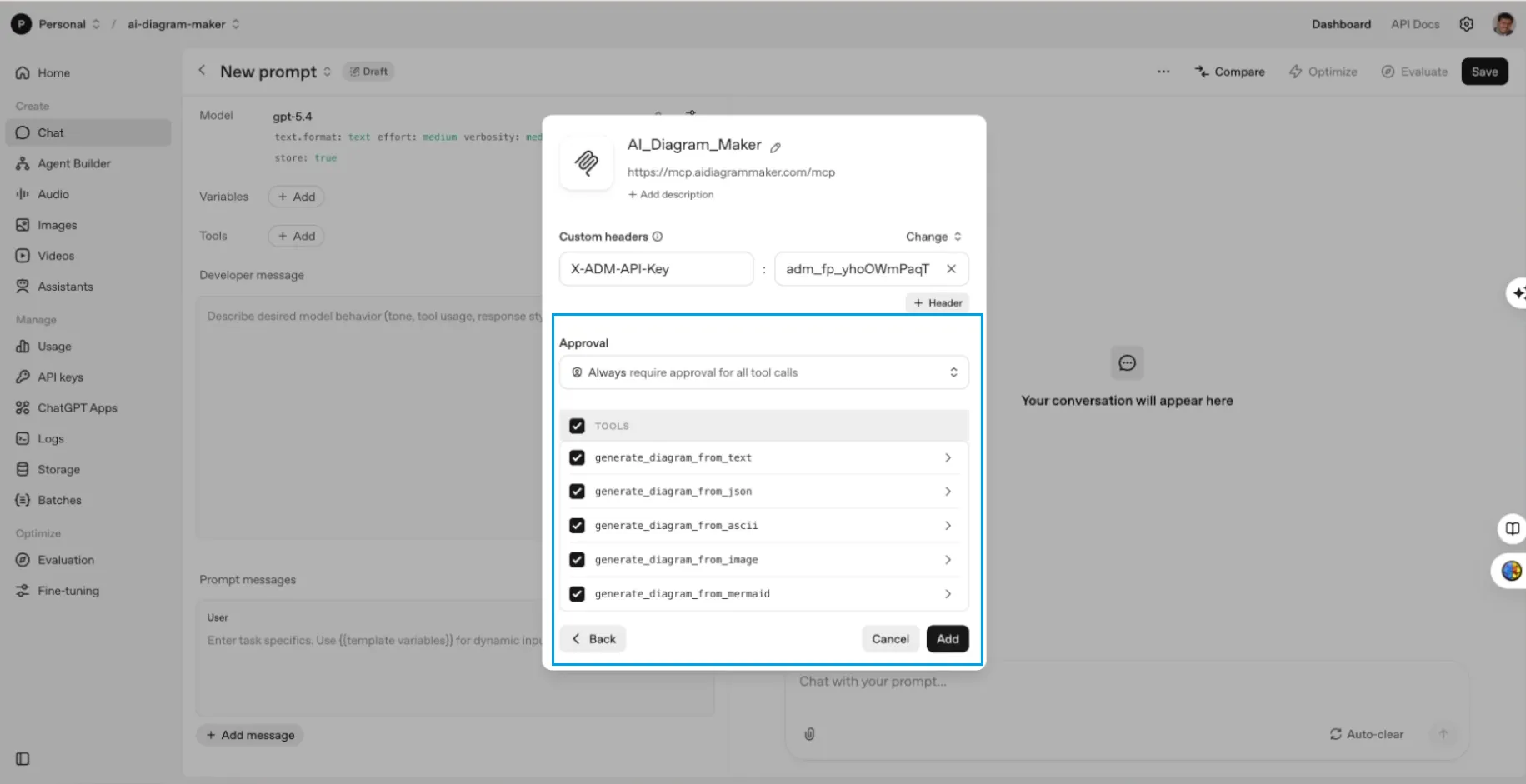
After that, add a short developer message so ChatGPT knows when to use the connector. Keep it simple:
Use AI Diagram Maker to create diagrams when I ask for a flowchart, sequence diagram, ERD, UML diagram, or architecture diagram.
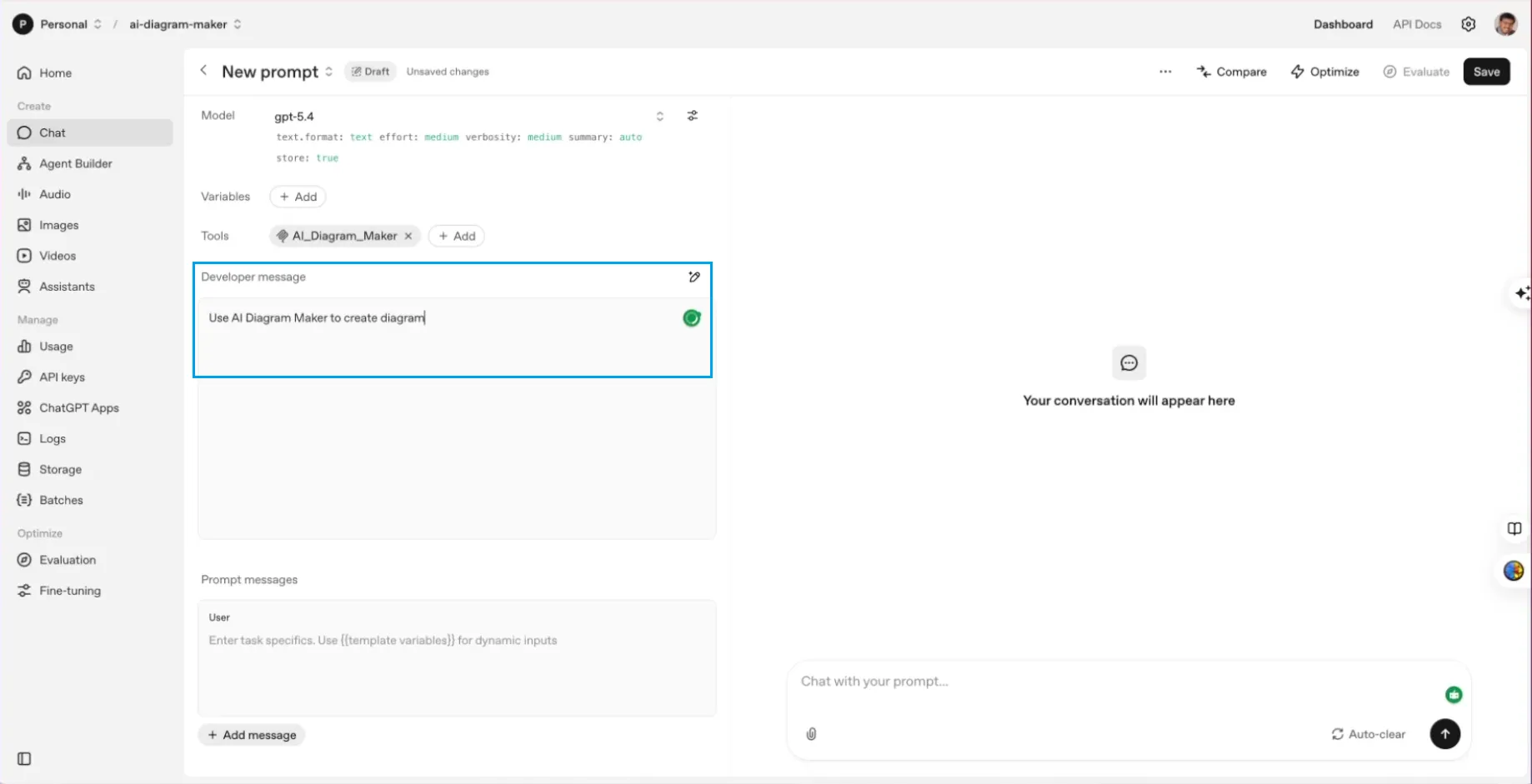
At this point, the setup is done. You can start prompting like normal.
Step 5: Create your first diagram
Start with something practical and easy to check. A good first example is a business flow:
Diagram the steps from finding a customer to getting paid.
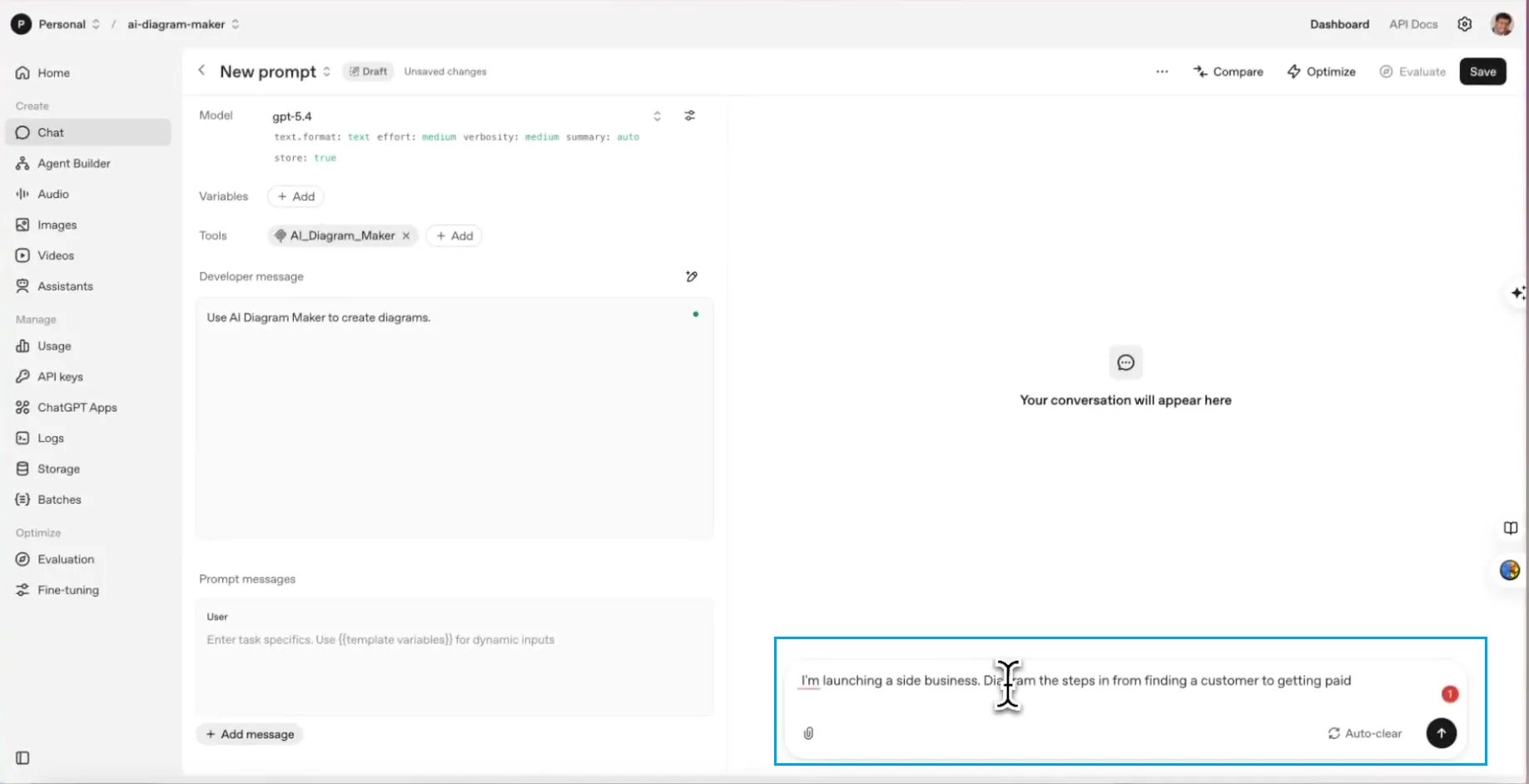
Because the MCP server is connected, ChatGPT recognizes that it has a diagram tool available. It generates the content, calls AI Diagram Maker, and returns the result in the conversation.
In this OpenAI platform flow, you will usually get a link to the diagram rather than a fully rendered visual inline. That is normal.
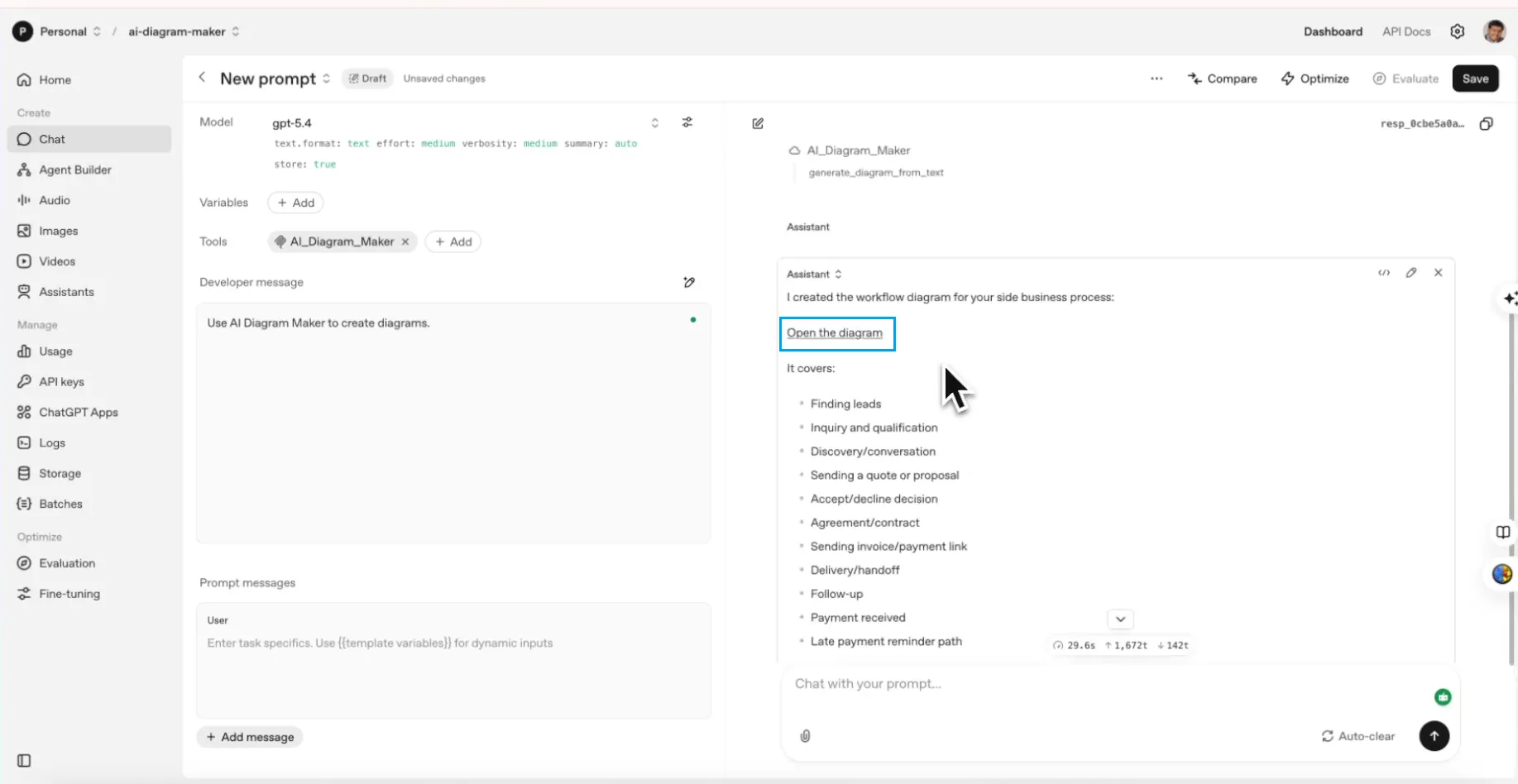
The important part is that you stayed in the same workflow. You did not switch to a separate diagramming app just to get the first draft.
Step 6: Open the diagram and make quick edits
Click the diagram link to open it in AI Diagram Maker.
This is where you can make small visual improvements without needing to be especially design-heavy. For example, you can change the layout direction, clean up labels, adjust spacing, or remove one or two unnecessary nodes.
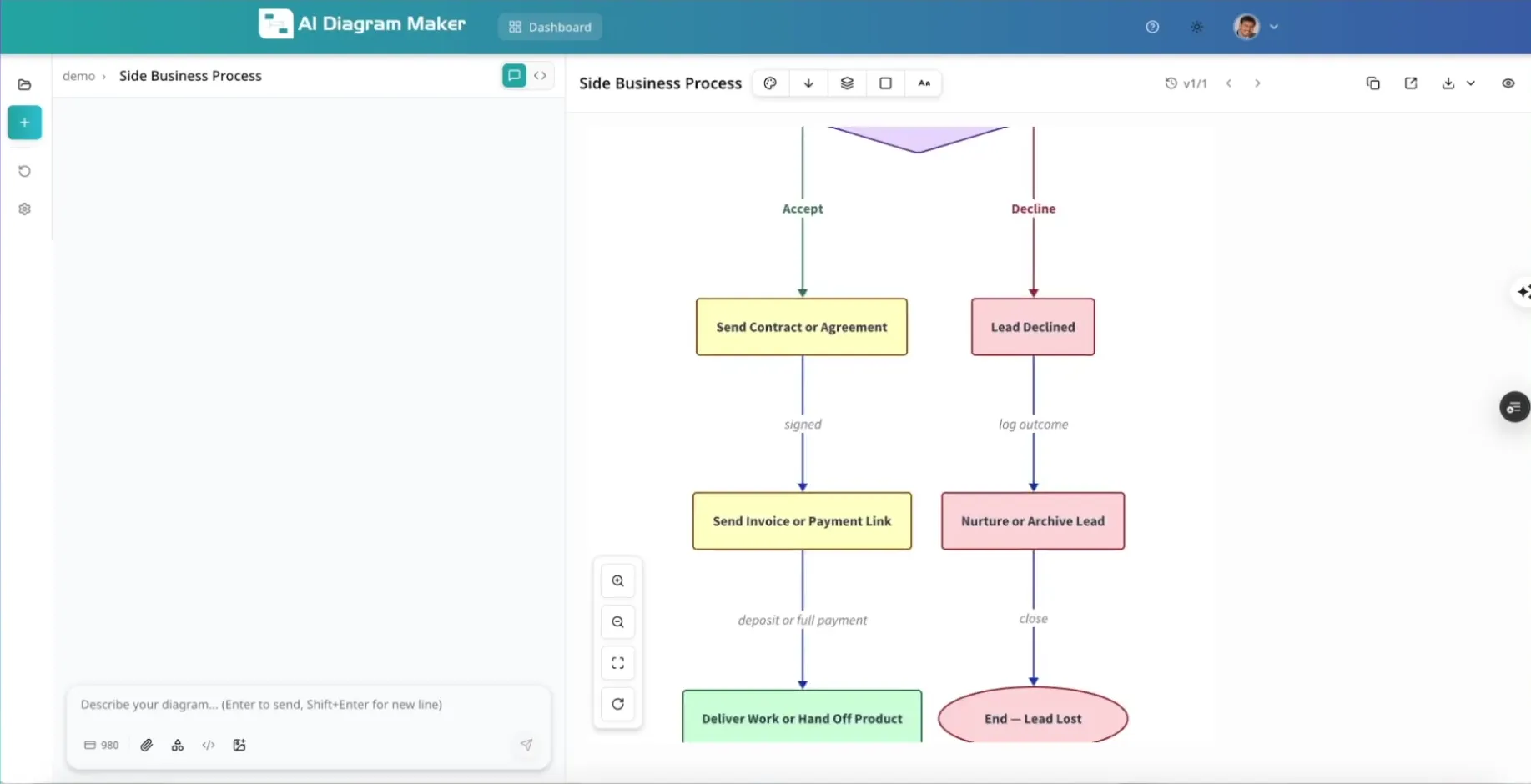
I like this split. ChatGPT handles the fast first draft. AI Diagram Maker handles the last bit of polish when you actually want it.
Wrap up
That is the full setup:
- create an API key in
AI Diagram Maker - connect the MCP server in the OpenAI platform chat
- prompt
ChatGPTto create a diagram - open the result in
AI Diagram Makerfor quick edits
The real win is that you stop breaking your thinking flow. No tool switching, no dragging boxes around, and no spending extra time on layout before you even know whether the diagram is right.
If you want to try it on your own workflow, start at AI Diagram Maker.