· Tutorial · 10 min read
Diagram Generator MCP for Cursor, Claude Code, and VS Code
Learn how to use AI Diagram Maker MCP in Cursor, Claude Code, and VS Code to turn repo context into polished diagrams without wrestling with Mermaid.

A diagram generator mcp starts to make sense the moment you use an AI coding agent on a real repository. The agent can explain the codebase, but a diagram is often much easier to scan than a long chat response.
The next step is usually turning that understanding into something visual. That is also where the workflow often turns frustrating. Mermaid is great for quick text-first sketches, but larger diagrams and follow-up edits get tedious fast. My goal here is to show how AI Diagram Maker MCP fits on top of Cursor, Claude Code, and VS Code so you can create polished diagrams inside the editor and refine them without extra tool-hopping.
What makes a good diagram generator MCP?
If you are using coding agents daily, a good diagram generator mcp should feel like part of the editor workflow, not a detached export step.
First, it needs tool access inside the editor. Cursor’s MCP documentation, Anthropic’s Claude Code docs, and VS Code’s agent tooling docs all point the same way: MCP is becoming the standard bridge between AI coding tools and external capabilities. That lets diagram generation sit next to code search, terminal actions, and file edits.
Second, it needs rendering. The MCP Apps documentation shows why this matters: an MCP app can render UI inside the host, preserve context, and avoid the usual “open another tool and come back later” loop. For diagrams, that means you can inspect and refine the result where the conversation already happened.
Third, it needs to stay editable. I want to be able to say “hide infrastructure details,” “group these services,” or “show only the important entities” without manually rebuilding the whole diagram.
Why use a diagram generator MCP instead of raw Mermaid?
I am not arguing for “never use Mermaid.” Mermaid is still great for quick sketches in markdown, architecture notes, and small diagrams that should stay as plain text.
The issue is that Mermaid-only agent workflows get brittle as diagrams grow. The Mermaid project has real examples of this, including a “Too many edges” error and a “Maximum text size in diagram exceeded” limit in Mermaid CLI. That does not make Mermaid bad. It just means “the agent produced syntax” is not the same as “the workflow is smooth.”
Iteration is the bigger problem for me. The first Mermaid draft is often fast. The second revision is where things slow down: renaming nodes, fixing labels, checking syntax, and trying to keep the graph readable. AI Diagram Maker MCP gives you a cleaner path from prompt to rendered diagram to later edits.
Cursor example: using a diagram generator MCP on a Spring Boot repo
For Cursor, I would keep the example simple: open a Spring Boot repo, point the agent at the project, and ask for an ERD. I am using the Raysmond/SpringBlog repo here to illustrate the workflow because its entities are easy to visualize.
If you have not set up the MCP server in Cursor yet, start with the AI Diagram Maker MCP setup guide. The Cursor instructions there walk through adding the ai diagram maker mcp server in Settings -> Tools and MCP and pasting the config into mcp.json.
Prompt
Create an ERD for the main domain entities.
What the first draft can look like
In this Cursor example, the interesting part is that the agent does not jump straight from “analyze the repo” to a finished visual. It first works through the codebase, identifies the main entities, and then generates Mermaid for the ERD. Because AI Diagram Maker MCP can create diagrams from Mermaid input, Cursor can hand that intermediate output to the right tool instead of leaving you with raw syntax to clean up yourself.
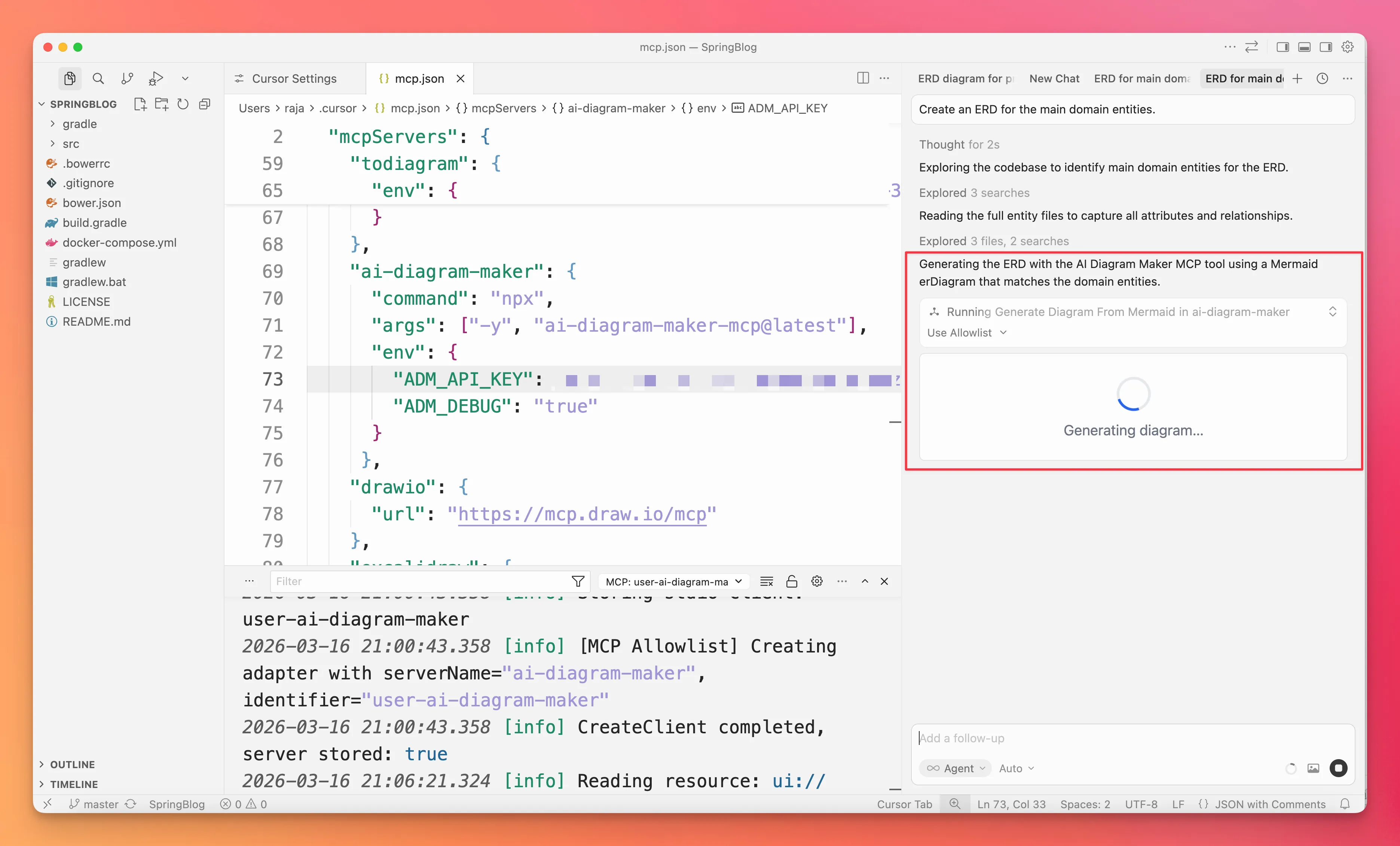
Cursor explores the Spring Boot project, reads the entity files, and passes the generated Mermaid ERD to AI Diagram Maker MCP. Mermaid is still part of the workflow, but it is no longer the final artifact you have to manage by hand.
Instead of returning only Mermaid code in chat, Cursor renders the diagram inline and gives you a direct link to open it in AI Diagram Maker for follow-up edits.
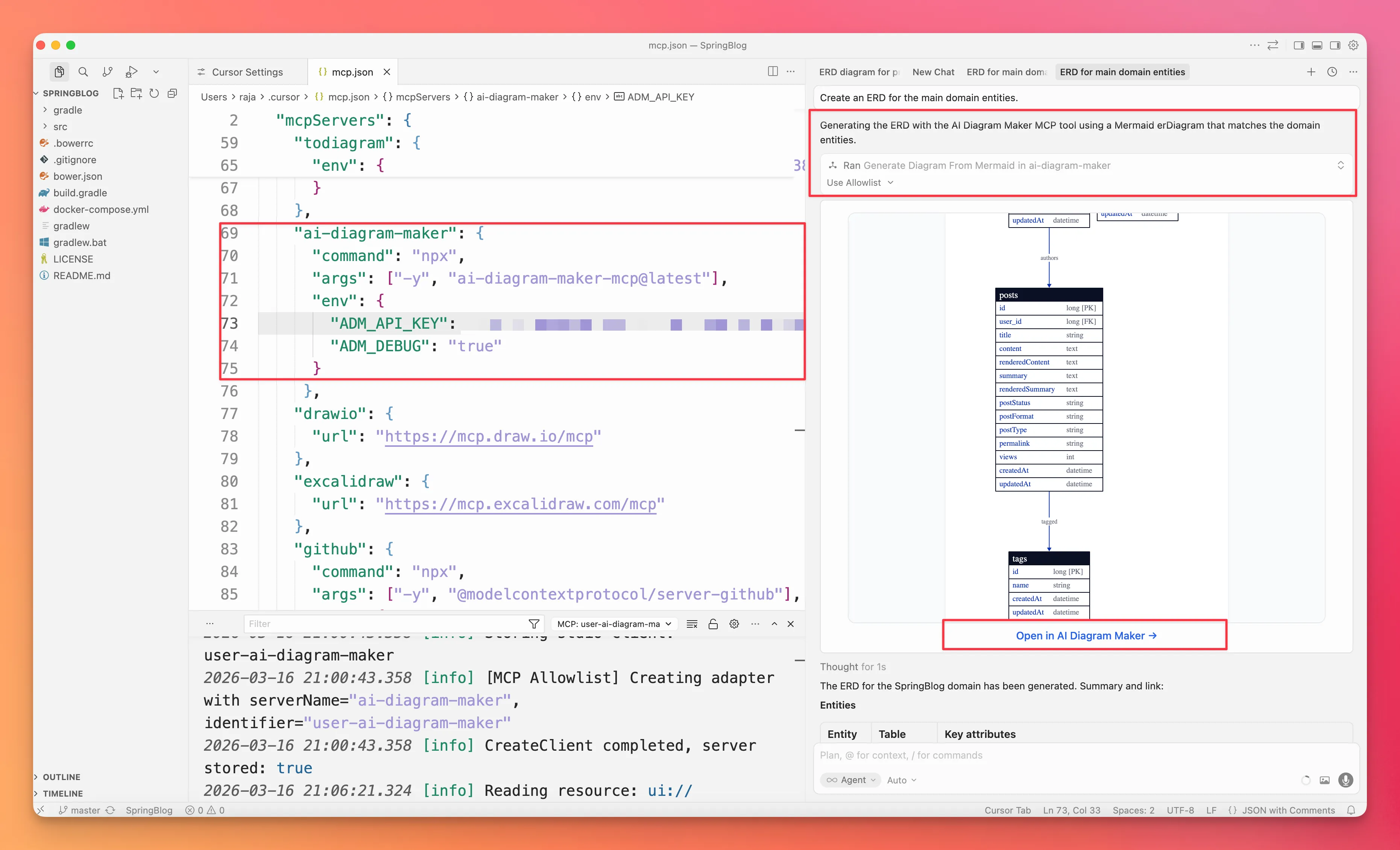
You stay inside the same code exploration session, inspect the result immediately, and still have a clean path into AI Diagram Maker if you want to refine labels or regroup entities.
In this repo, the generated ERD highlights four core areas: users, posts, tags, and settings. That is already useful for onboarding because it surfaces the relationships that matter first.
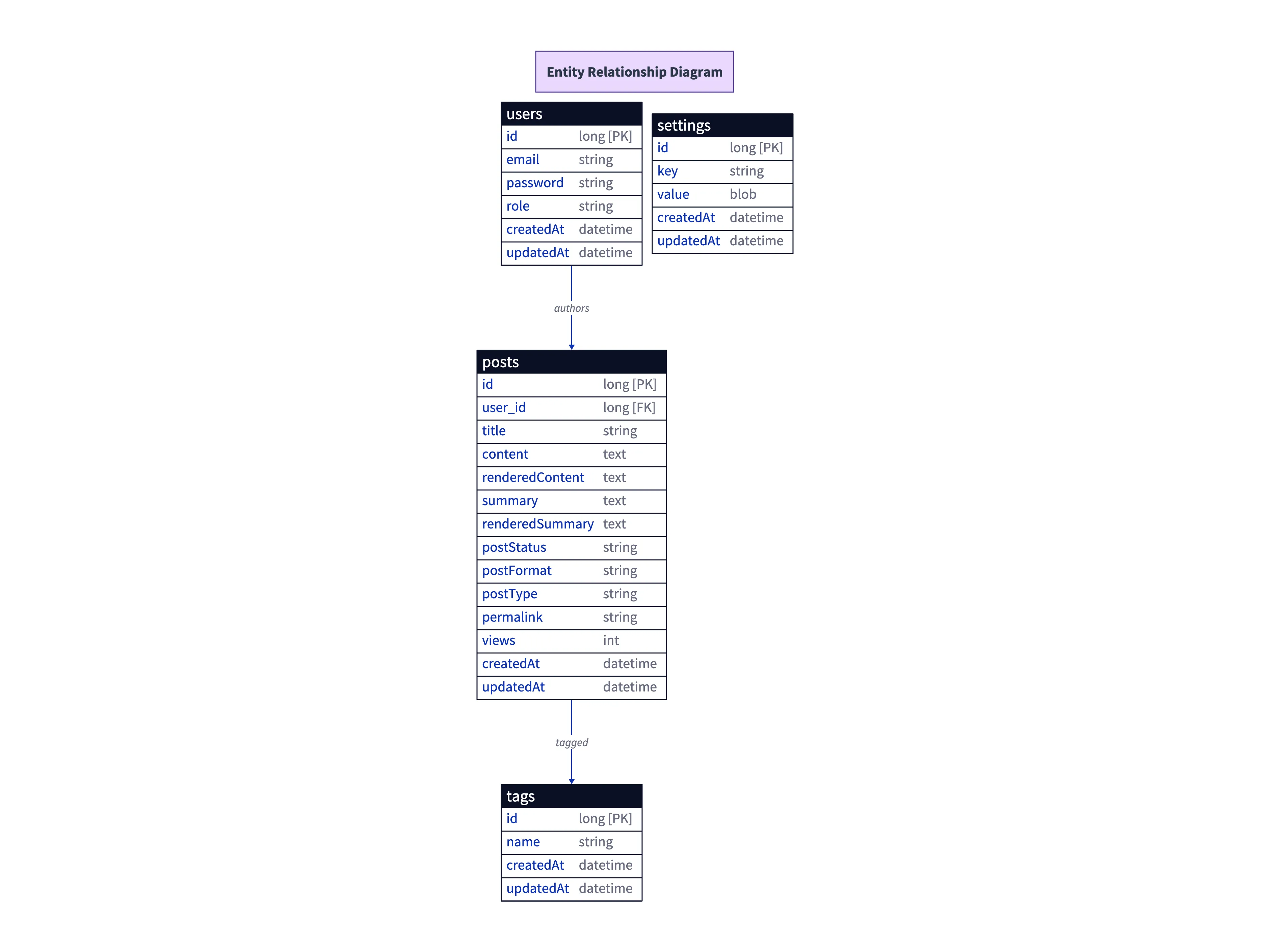
This is the kind of first draft I want from a diagram generator MCP: a rendered diagram based on repository context, shown directly inside Cursor, with an obvious path to refine it.
Claude Code example: turning Python banking logic into a flowchart
For Claude Code, I would use a small Python project and ask for a flowchart of the main user flow. I am using the erajasekar/Simple-Banking-System repo here to illustrate the workflow.
Prompt
Generate a flowchart that explains the main user flow.
Add the MCP server and verify the tool
Before generating anything, I would add the AI Diagram Maker MCP server to Claude Code and make sure it shows up as connected. That confirms Claude Code can call the diagram tool instead of only describing the result.
claude mcp add ai-diagram-maker -t stdio -e ADM_API_KEY=<api_key> -- npx -y ai-diagram-maker-mcp@latest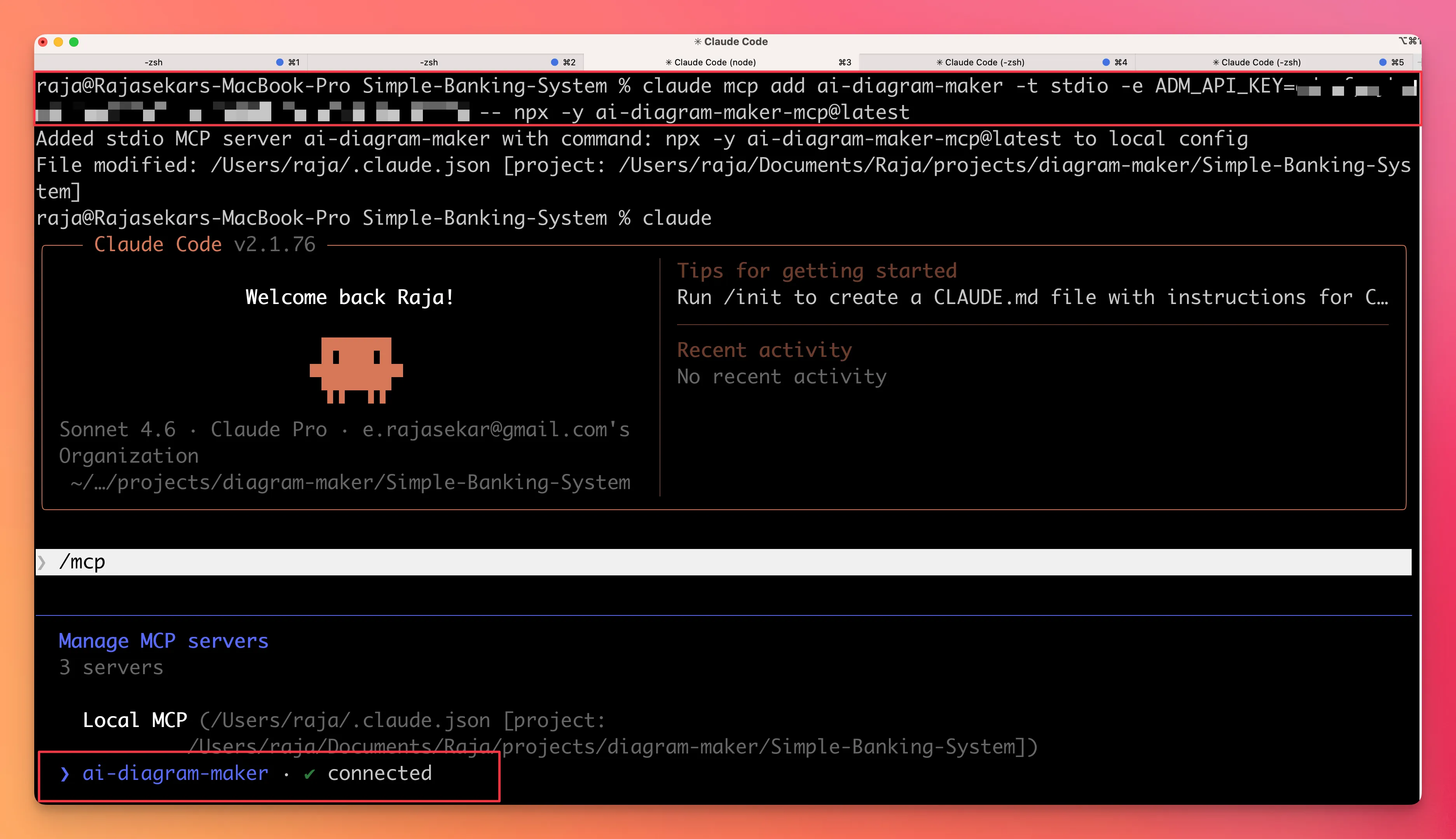
Claude Code lists ai-diagram-maker as connected, so the workflow is ready to use.
Claude Code calls the right MCP tool
Once the server is available, Claude Code reads the Python project, understands the banking flow, and calls generate_diagram_from_text with a detailed description of the app. The important part is that the tool call is explicit: Claude Code is passing workflow context to the diagram generator, not just summarizing the repo.
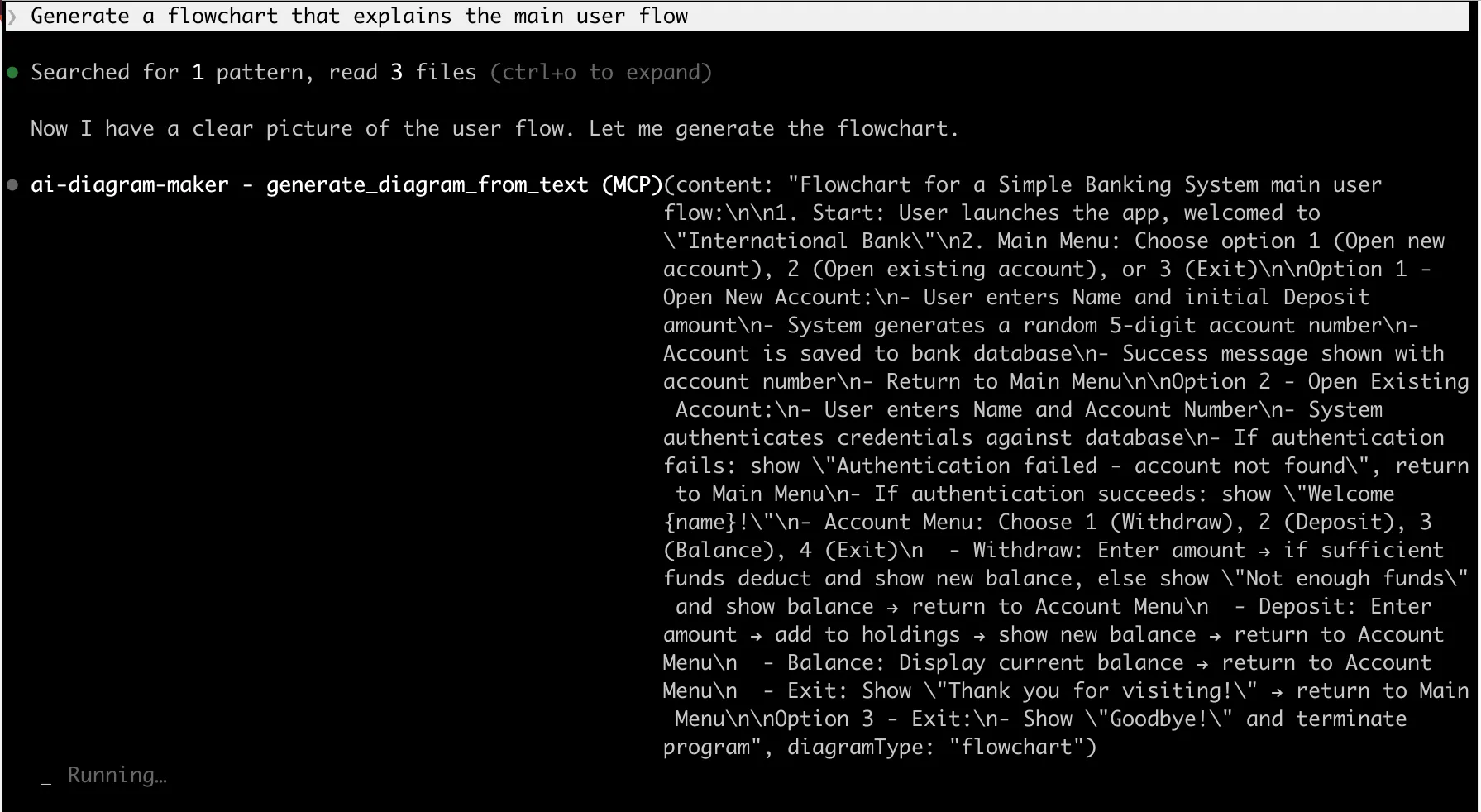
This works well for flowcharts because Claude Code captures the main user journey in one pass:
- launch the app and land on the main menu
- open a new account or access an existing account
- authenticate the user when needed
- branch into withdraw, deposit, balance, or exit actions
- return to the menu or terminate the program
For a small repo, that is the right level of abstraction. It explains the logic without turning into a function-by-function dump.
Claude Code returns a usable diagram link
After the MCP tool runs, Claude Code returns a direct AI Diagram Maker link so you can keep refining the diagram in the browser.
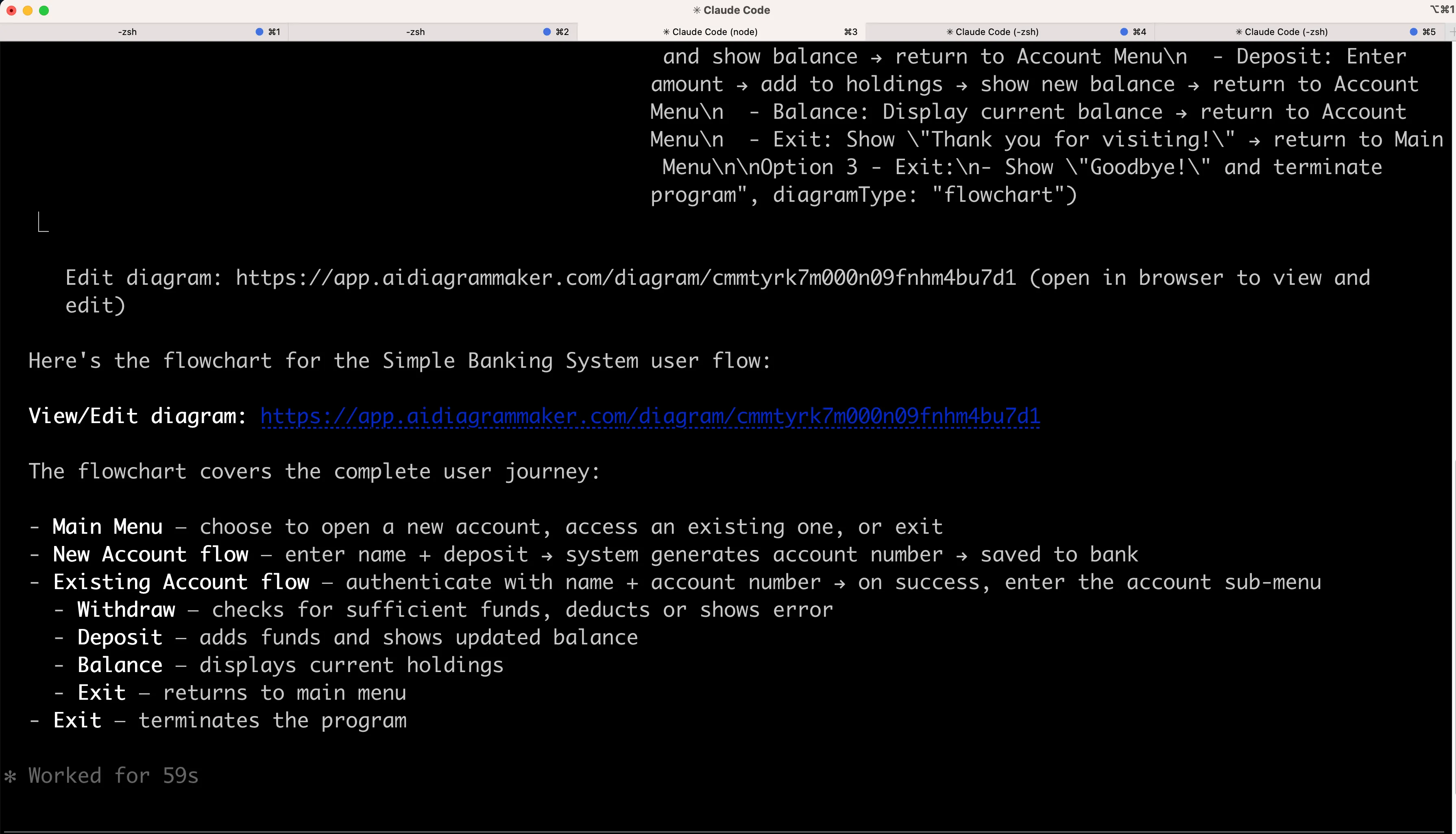
This handoff is underrated. The agent gives you a strong first pass, then hands it off to a proper diagram workspace instead of trapping the result inside chat output.
Open it in AI Diagram Maker and improve readability
Once the diagram is open in AI Diagram Maker, small presentation tweaks become easy. In this case, increasing the node font size makes the banking flow easier to read without changing the structure Claude Code generated.
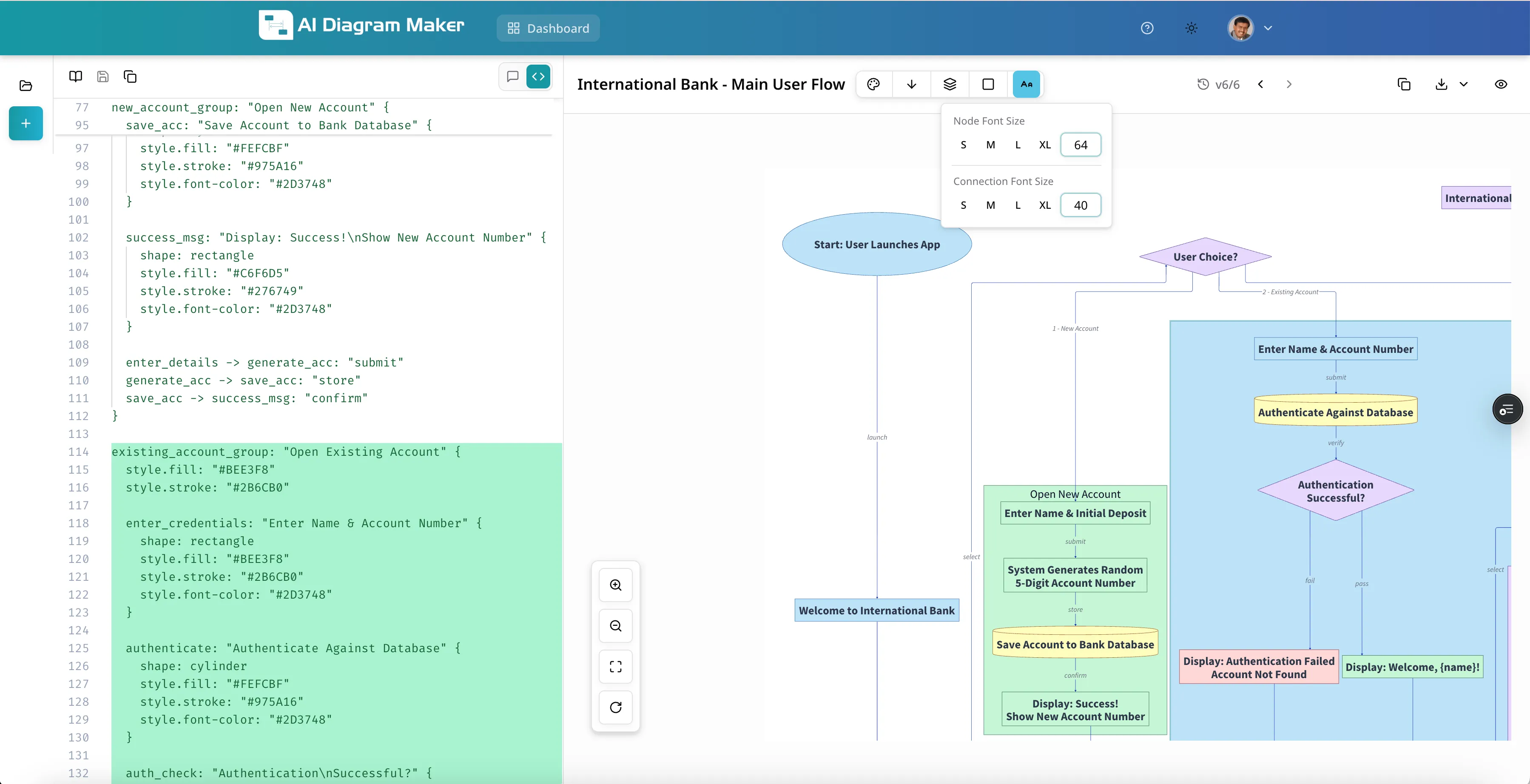
This is where the MCP workflow feels better than raw Mermaid alone. Claude Code handles code understanding and the first draft, then AI Diagram Maker gives you a cleaner editing surface.
Final result
The finished flowchart is a strong summary of the application. It shows the main menu, account creation, authentication, banking actions, and exit states in one view.
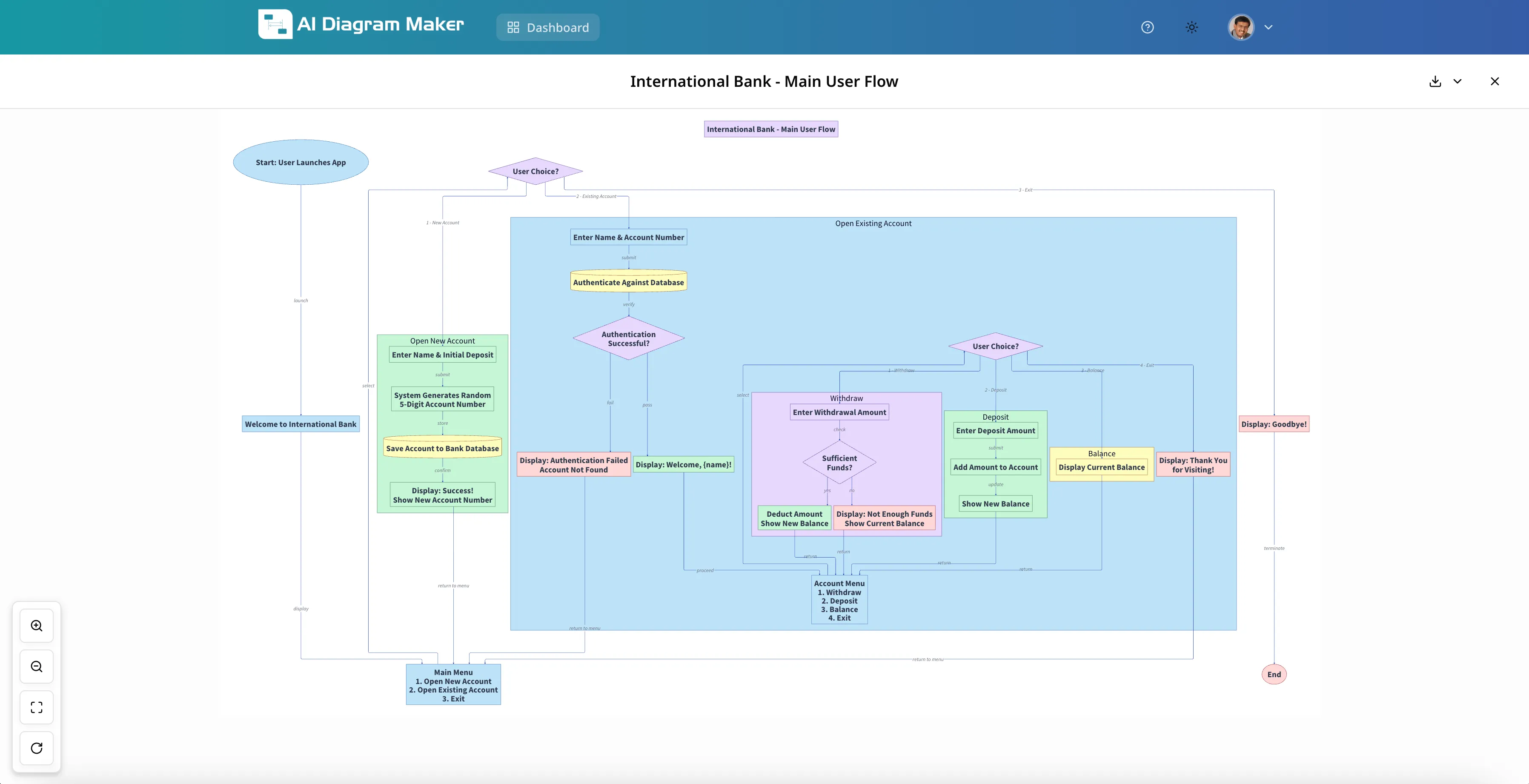
That is the kind of output I want from a diagram generator MCP in Claude Code: understand the repo, call the right tool, and make the polish step lightweight.
VS Code example: creating a diagram directly from natural language
The VS Code example is useful for a different reason: it is not about codebase analysis at all. It shows that a diagram generator mcp can also create a diagram from a plain-English description inside the IDE.
A lot of diagramming starts before there is a clean repo model to analyze. Sometimes you just want to sketch an architecture idea, explain a deployment shape, or capture a system boundary while you are already in the editor.
Prompt
Create diagram using AI Diagram Maker for React Frontend talks to Node API. API uses Redis and Postgres. Everything runs in Docker. Use icons
What VS Code generates from a plain-English description
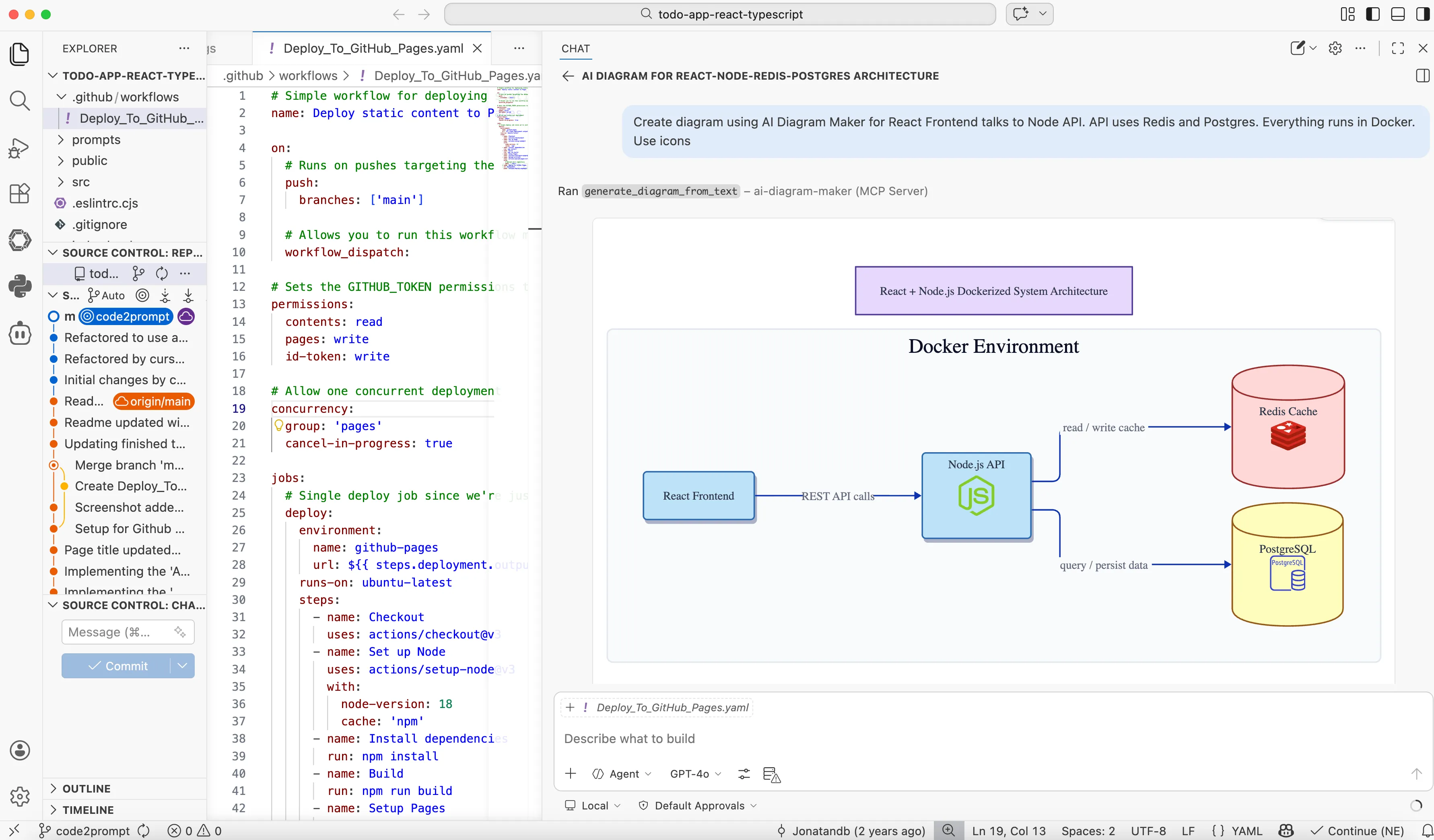
The screenshot shows the workflow clearly. Inside VS Code, I describe the system in plain English, the agent calls generate_diagram_from_text, and AI Diagram Maker returns a rendered architecture diagram right in the editor.
The interesting detail is the end of the prompt: Use icons. That small instruction changes the feel of the output. Instead of a bare box-and-arrow sketch, the generated diagram includes recognizable technology visuals like the Node.js mark in the API service and branded Redis and PostgreSQL icons in the data layer.
The structure is still simple in the right way: a React Frontend talks to a Node API, the API connects to Redis and Postgres, and everything sits inside a Docker Environment. But the icons make the result look much closer to something you would actually drop into a note, design doc, or architecture review without extra cleanup.
This example broadens what the MCP workflow is good for. It is not only for turning repository context into diagrams. It is also a fast way to turn a rough idea into a polished visual while you are still in the IDE, especially when a prompt detail like Use icons helps the first draft land closer to presentation-ready.
When should you use Mermaid directly?
I would still use Mermaid directly when the diagram is small, text-native, and mostly lives inside markdown. A quick sequence diagram in a pull request or a lightweight flowchart in docs is a very reasonable Mermaid use case.
I would reach for AI Diagram Maker MCP when the diagram needs to look polished, survive multiple revisions, or become part of a repeatable documentation workflow. That is the sweet spot: you keep the speed of agent-driven generation but get a better rendering and refinement experience than raw syntax alone.
If your team is already thinking about diagram as code, this fits naturally with that mindset. And if you are working from real repositories rather than toy examples, it also pairs well with a broader generate diagrams from GitHub repositories workflow.
FAQ
What is a diagram generator MCP?
A diagram generator MCP is an MCP server that lets an AI coding tool generate diagrams directly from the editor. Instead of switching to a separate app, you can ask the agent to analyze code or text and produce a visual result in the same workflow.
Does AI Diagram Maker MCP replace Mermaid?
Not completely. Mermaid is still useful for quick text-first diagrams in markdown. AI Diagram Maker MCP is more helpful when you want polished rendering, easier iteration, and a smoother workflow for larger diagrams.
Why does in-editor rendering matter so much?
In-editor rendering keeps the diagram in the same context as the code exploration that created it. You can review and refine without bouncing between tools, which makes diagramming feel like part of development instead of a separate task.
The bigger shift
What I like most about this workflow is not just that it creates diagrams faster. It changes when I bother making diagrams at all. When the cost of going from “I should visualize this” to “I have a usable diagram” drops low enough, diagrams become part of normal code exploration.
That is the real opportunity with MCP-connected diagramming. Your agent already knows how to inspect files, summarize structure, and reason about systems. A good diagram layer turns that understanding into something visual before the context disappears.
If this fits the way you work, try the AI Diagram Maker MCP server on a real repository you already know. That is the fastest way to see where it helps and where it can replace the usual Mermaid-only detour.