· Support & Resources · 5 min read
Can I Edit AI-Generated Diagrams Manually? & Many more frequently Asked Questions
You are not locked into the AI's first draft. Learn how to edit AI diagrams using conversational prompts, direct code manipulation, and version control to get the perfect result.
1. How does the AI generate diagrams from text?
It is a process that relies on Natural Language Processing (NLP). When you type a prompt, a Large Language Model analyzes your intent. It identifies the key entities (the nouns) and their relationships (the verbs). It then translates that understanding into a structured code format, we use a language called D2, which is then rendered into the visual diagram you see on the screen.
2. What kind of AI model powers AIDiagramMaker?
We utilize state-of-the-art Large Language Models (LLMs) to power our generation engine. Rather than relying on a single static model, we constantly evaluate the latest releases in the AI space. We test them against complex diagramming tasks and select the specific models that demonstrate the best ability to translate human language into accurate technical structures. This ensures you are always getting the benefit of the smartest models available.
3. Does the AI learn from my diagrams?
No. We do not use your specific diagrams or prompts to train our core AI models. Your data is your own. We may analyze usage patterns in an aggregated and anonymized way to understand which features are popular and to improve the product, but the content of your diagrams is kept private.
4. Can I edit the AI-generated diagrams manually?
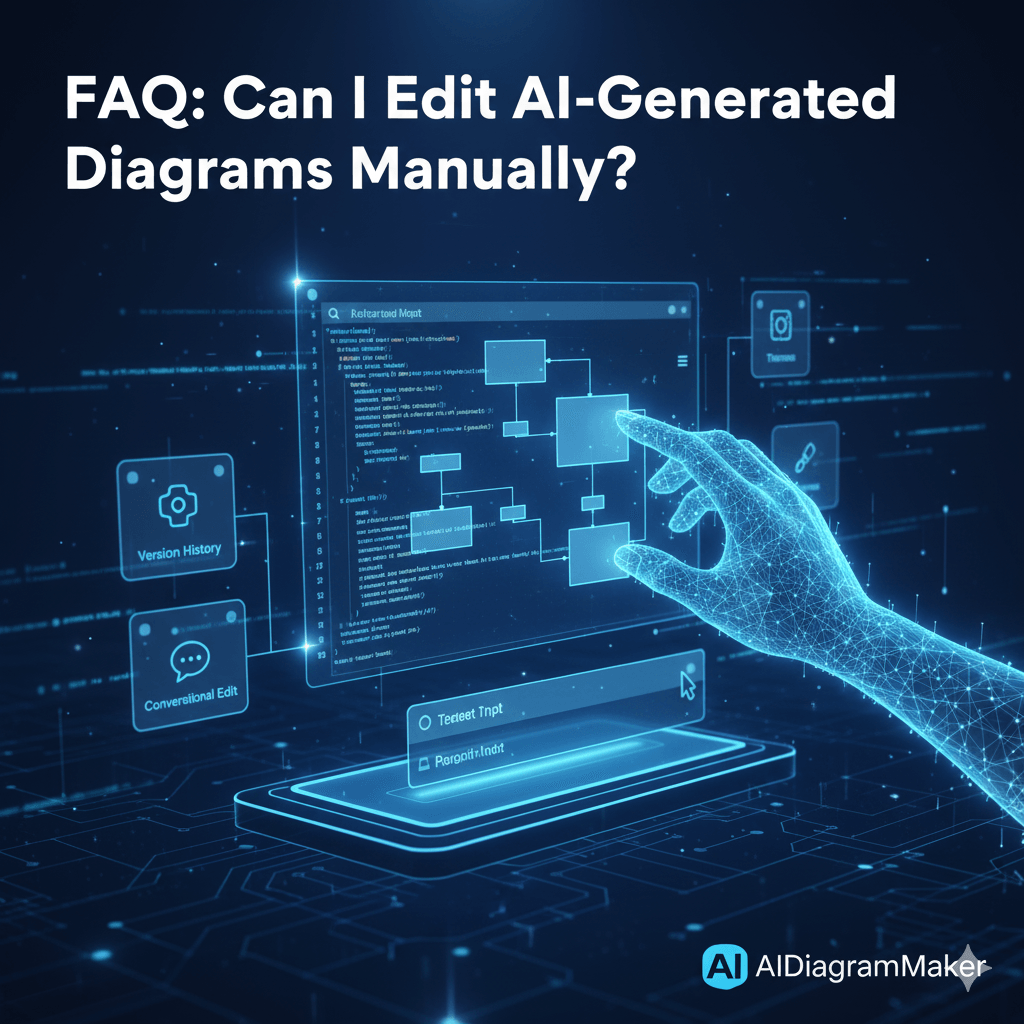
Yes, and this is a really important part of the workflow. The AI is there to give you a massive head start, but you are always in control. You can edit the diagram in a few ways. The easiest is to use a follow-up prompt, like “Change the color of that box to blue.” You can also directly edit the underlying text-based definition of the diagram if you want that level of granular control.
5. How long does it take to generate a diagram?
It’s usually very fast, typically just a few seconds. For very complex diagrams generated from a large codebase, it might take a little longer as the AI has more information to process, but for most text-based prompts, the result is nearly instant.
6. Can I undo or regenerate a diagram if I don’t like it?
Absolutely. If you don’t like the first result, you can simply tweak your prompt and hit “regenerate” to try again. We also have a full version history, so you can always see your previous generations and roll back to an earlier version with a single click.
7. Does AIDiagramMaker support drag-and-drop editing?
While our primary focus is on generating diagrams from text and code, we understand that sometimes you just want to nudge something manually. We are actively exploring ways to integrate some limited, optional drag-and-drop functionality for fine-tuning, but the core of the experience will always be text-first.
8. Can I link shapes and nodes automatically?
Yes, this is a core part of what the AI does. When you describe a relationship, like “the API Gateway connects to the User Service,” the AI automatically creates that link. You don’t have to draw any lines yourself.
9. Does AIDiagramMaker compress images or affect quality?
No, we aim for the highest possible quality. When you export to a format like PNG, we provide a high-resolution output. And because SVG is a vector format, its quality is effectively infinite; you can scale it to any size without losing clarity.
10. What browser is best for using AIDiagramMaker?
The application is built to work well on all modern, evergreen browsers. We generally recommend using the latest version of Google Chrome, Mozilla Firefox, or Safari for the best and most consistent experience.
11. How does version history work?
Every time you generate or significantly modify a diagram and save it, we create a new version in the history log. This log shows you a timestamp and the user who made the change. You can click on any previous version to view it and, if you want, restore it as the current version. It’s a bit like having a simplified git history for your visuals.
12. Can I integrate AIDiagramMaker with Notion, Figma, or Miro?
Direct, interactive integrations are on our roadmap. For now, the best way to use your diagrams in those tools is to export them as a high-quality SVG or PNG and then embed that image into your Notion page, Figma board, or Miro whiteboard.
13. Does it support API access?
Not at the moment, but it is coming soon. We are actively working on a developer API that will allow you to programmatically generate diagrams and integrate our technology into your own applications. This is a high priority item on our roadmap, so please stay tuned for future updates.
14. Can I use my own AI prompts?
Of course. That’s the whole idea. The prompt canvas is a blank slate for you to describe your vision in your own words.
15. What file formats are supported for export?
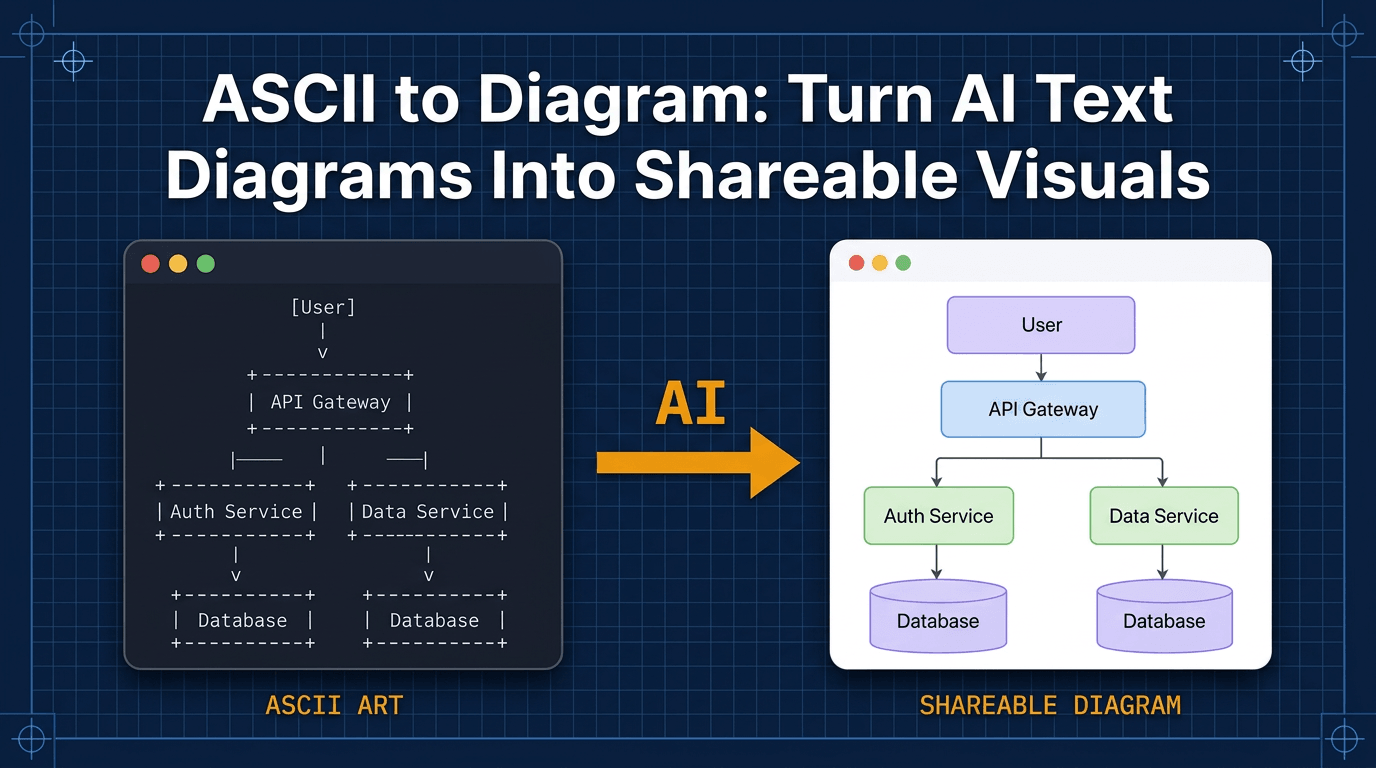
On the input side, we offer something even more powerful. You can actually upload PDF documents or images directly into the tool. Our AI will analyze the content of those files and generate a diagram based on the information it finds, saving you from having to type out long text prompts manually.
16. Does it support different diagram styles or themes?
Not currently, but it is a planned feature. We are actively working on adding a selection of built-in themes that will allow you to customize the look and feel of your diagrams switching from professional to modern styles in a future update.
17. Can I generate diagrams in dark mode?
Yes. We have themes that are specifically designed for dark mode, which is something I know a lot of developers appreciate.