· Developer Tools · 7 min read
How to Update Diagrams in Seconds: The "Regenerate" Workflow
Documentation rot is the silent killer of engineering velocity. Learn how the "Regenerate" workflow allows you to update technical diagrams automatically from code or text in seconds, keeping your documentation alive.
There is a dirty secret in software documentation. We all create diagrams at the start of a project. We make them look beautiful. We put them in the design document. We get the sign off. Then we start coding.
Two weeks later the code has diverged from the diagram. Two months later the diagram is a historical artifact that bears almost no resemblance to the actual system. Two years later a new hire asks for an architecture diagram. You laugh and say “Oh ignore that Wiki page. It is totally wrong.”
This is the cycle of “Documentation Rot.” We all hate it. But we all accept it. We accept it because the alternative is spending hours every week manually updating boxes and arrows in a drawing tool. And nobody has time for that.
This guide is about breaking that cycle. It is about a new workflow, the regeneration workflow that allows you to update diagrams automatically in seconds.
The Pain of Outdated Diagrams: A Common Problem in Fast-Paced Development
The problem isn’t that we are lazy. The problem is that traditional diagramming tools are disconnected from our source of truth.
Why Manual Diagram Updates Are a Time Sink and Source of Errors
Think about what it takes to update a manual diagram.
Let’s say you added a new “Caching Layer” to your microservice architecture. To reflect this in a tool like Lucidchart, you have to log in. You have to find the file. You have to unlock the layers. You have to drag a new box onto the canvas. You have to resize it. You have to disconnect the old arrows from the Database. You have to connect them to the Cache. You have to draw new arrows from the Cache to the Database. You have to realign everything because now the layout looks crowded.
This simple change takes fifteen minutes. If you are in the middle of a sprint, that is fifteen minutes you don’t have. So you skip it.
The Disconnect Between Code Changes and Documentation Rapid Diagram Iteration
The friction creates a lag. The code changes instantly when you merge a Pull Request. The documentation changes: eventually.
This gap is dangerous. It means that any decision made based on the documentation is suspect. It forces developers to read the code to understand the high level structure, which is slow and inefficient. We need rapid diagram iteration that matches the speed of our deployment pipeline.
The Need for an Efficient Way to Regenerate Diagrams from Code
The solution is not to hire a full time technical writer. The solution is to change the input mechanism. If the diagram is generated from text, from code, or a description, then updating the diagram should be as simple as updating that text. It should not involve a mouse. It should not involve pixel pushing.
Introducing AI Diagram Maker: The “Regenerate” Advantage for Living Documentation
We built AI Diagram Maker to support this dynamic workflow. We view diagrams as fluid representations of state, not static oil paintings.
The Core Concept: Diagrams as Dynamic Representations, Not Static Images
In our tool, the “source code” of the diagram is the prompt or the code snippet you provided. The visual is just the compiled output. When the input changes, the output must change. This is the same mental model we use for software. You don’t edit the binary executable: you edit the source code and recompile.
How the “Regenerate” Workflow Solves the Update Problem
Our generation engine is your compiler for visuals. Instead of moving boxes, you simply tell the AI what changed. Or even better, you paste the new version of the code that caused the change.
The AI analyzes the new input, figures out the new structure, and redraws the entire diagram from scratch. It handles the layout and the routing. It gives you a fresh, accurate diagram instantly.
Acknowledging the Workflow: Re-Pasting Code, 10x Faster Than Manual
Let’s be honest about the workflow. We are not claiming magic telepathy. You do have to take an action. You have to copy the new code or write the new prompt.
But let’s compare the time. Copying a new SQL dump and pasting it takes ten seconds. Generating the fresh diagram takes five seconds. Total time: 15 seconds. Manually updating an ERD with five new tables takes thirty minutes.
It is not fully autonomous yet, but it is an order of magnitude faster than the manual alternative. It turns a “chore” into a “quick task.”
Real-World Scenarios Where “Regenerate” Shines
This workflow transforms how teams maintain different types of documentation.
Updating System Architecture Diagrams After a Microservice Refactor
Your team decides to introduce a message queue between the API and the Worker.
- Old Way: Open the diagram. Delete the line. Add a “Queue” icon. Draw two new lines. Re-center everything.
- The AI Way: Open your prompt in the AI System Architecture Generator. Edit the text and generate the diagram. Done.
Adapting Flowcharts to Evolving Business Logic
Product requires a new approval step for transactions over $10,000.
- Old Way: Drag all the bottom nodes down to make space. Insert a diamond. Reconnect arrows. Fix the crooked lines.
- Regenerate Way: Open the AI Flowchart Maker prompt. Add the sentence: “If transaction is > $10k require Admin Approval.” Click Regenerate. The AI inserts the node and reflows the chart perfectly.
Keeping UML Class Diagrams in Sync with Codebase Changes
You just refactored the User class to implement a new Interface.
- Old Way: Manually edit the class box. Add the interface box. Draw the dotted line with the triangle head.
- Regenerate Way: Copy the new class file content. Paste it into the AI UML Class Diagram Generator. Click Regenerate. The diagram reflects the new inheritance immediately.
Reflecting Database Schema Adjustments in ERDs
You ran a migration that added three columns and a foreign key.
- Old Way: Manually type the column names into the entity box. Draw the line.
- Regenerate Way: Copy the output of pg_dump. Paste it into the AI ER Diagram Generator. Click Regenerate. The visual schema is now identical to production.
The AI Diagram Maker “Regenerate” Workflow Explained
Here is the precise workflow to keep your docs fresh.
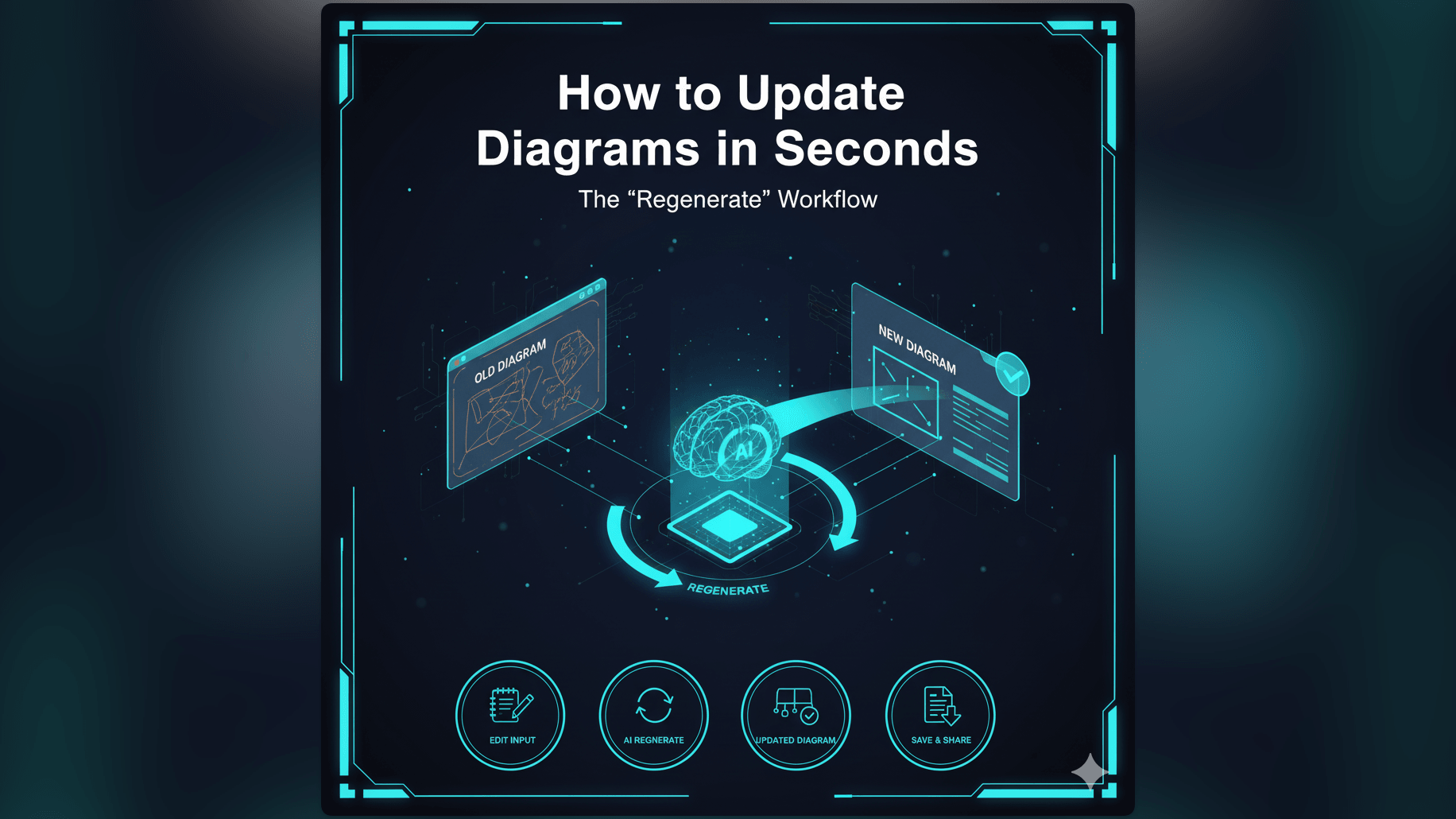
- Step 1: Modifying Your Source: The change happens in your work environment first. You write the code, edit the SQL, or update the requirements document.
- Step 2: Inputting Updated Information: Go to AI Diagram Maker. If you saved your previous diagram (which you can do via our Diagram-as-Code integration), load it up. Delete the old part and paste the new part.
- Step 3: Instant Diagram Update: Hit generate. The engine runs, parses the new state, and renders the new graph.
- Step 4: Reviewing and Exporting: Verify the logic. If it looks good, export the SVG and commit it to your repo.
Why “Regenerate” Outperforms “Live Sync” and Manual Editing
You might ask, “Why not just use a tool that live syncs with my code?”
The Limitations of Live Sync for Complex Systems
“Live Sync” plugins promise the world but often fail in practice. They require complex configuration, break when the code doesn’t compile perfectly, and struggle to visualize high-level abstractions, often showing too much detail when you only want an architectural overview.
Our “Copy-Paste-Regenerate” approach is robust. It works on snippets, pseudo-code, and even code that doesn’t compile yet. It gives you control over what you visualize.
The Inefficiency of Manually Dragging Boxes in Lucidchart
Dragging boxes is not engineering: it is low-leverage work. Every minute you spend aligning pixels is a minute you are wasting. The “Regenerate” workflow respects your time.
The Focus: Ensuring Diagrams Accurately Reflect the Current State
The ultimate goal is trust. You want your team to trust the diagrams. If updating is easy, you will do it more often. If you do it more often, the diagrams will be accurate. If the diagrams are accurate, the team will trust them.
This virtuous cycle starts with making the update process painless. That is what this workflow does. It makes keeping documentation alive the path of least resistance.
See The Developer’s Guide to AI Diagramming main guide for more on how this philosophy fits into the modern developer stack.